Security awareness quiz ideas beyond multiple choice
Too many security awareness quizzes are ten multiple choice questions with a "which of these is a strong password" feel. They are easy to build, and learners can pass them without changing a single habit.
By Nathan Stoker · Published Nov 17, 2026 · 4 min read
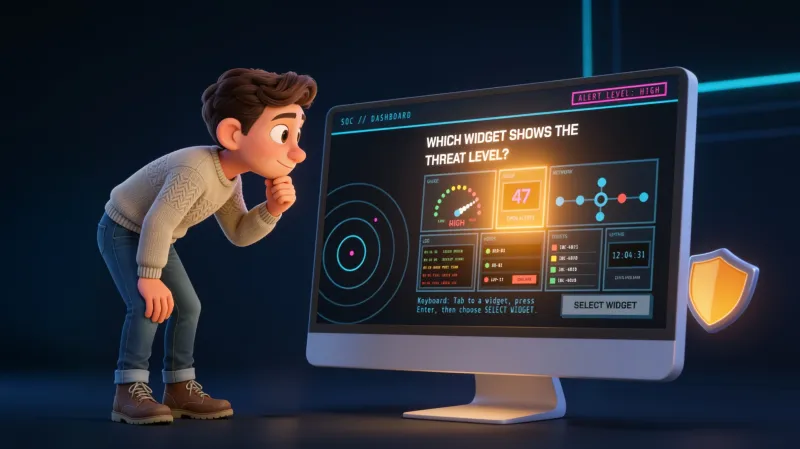
Too many security awareness quizzes are ten multiple choice questions with a "which of these is a strong password" feel. They are easy to build, and learners can pass them without changing a single habit.
The fix is not more questions. It is matching the question format to the behavior you want. Here are five that work, with the mistake I see most often for each one.
I build these as ready-made Storyline 360 templates, so the examples below come from three of them: Phish Alert, SOC Radar and Vault Door. Each has 12 slides: an intro, ten question slides in ten different formats, and a Results slide. Nine questions are scored at 10 points each, with a pass mark of 80%.
[Screenshot: The ten question slides of one template in Storyline's slide sorter, one format per slide. Alt text: "Storyline slide sorter showing the intro, ten question slides and the Results slide of a security quiz template."]
Spot the phish: use a hotspot
Real phishing is not a multiple choice question. It is an email you have to look at. A hotspot question puts a message on screen and asks the learner to click the part that gives it away: the sender address, the link, the urgent wording.
Mistake to avoid: making the tell obvious. If the only suspicious thing is a misspelled word, you are testing proofreading. Put the clue where a busy person would skim past it, such as a sender domain that is one letter off, and explain it in the feedback.
[Screenshot: A hotspot question with an email header on screen and the sender domain highlighted in the feedback. Alt text: "Hotspot question showing a phishing email with the lookalike sender domain marked as the correct area."]
Safe or unsafe: use sorting
A lot of security judgment is a quick call on a pile of small things. A USB stick found in a parking lot. A password on a sticky note. A shared login. Sorting asks the learner to drop each one into "safe" or "unsafe", which feels like the actual decision.
Mistake to avoid: only including clearly unsafe items. If everything is a trap, learners learn to sort by tone instead of by reason. Mix in a few things that look odd but are fine, and say why in the feedback.
Put the response in order: use ordering
Incident response is a sequence, and the sequence is the point. Ordering questions ask learners to arrange steps: notice, report, contain, and so on, using your own policy. It works well in SOC Radar, where the monitoring-screen look matches an analyst's job.
Mistake to avoid: using a sequence that is really a checklist. If steps can happen in any order, ordering will mark correct answers wrong. Use it where order changes the outcome, like reporting before you start deleting things.
[Screenshot: An ordering question with five incident response steps in shuffled order. Alt text: "Ordering question in the SOC Radar template with incident response steps listed out of order."]
Threat to response: use matching
Matching suits pairs. A phishing email goes with "report it". A tailgater at the door goes with "ask to see a badge". Vault Door's heavy, locked-down look fits physical security and data handling, and its matching slide pairs a situation on the left with a response on the right.
Mistake to avoid: ambiguous pairs. If two threats could reasonably share a response, learners will argue with the quiz instead of learning from it. Keep one clear answer per pair, and keep the list short.
How sure are you: use confidence rating
This one is not about right or wrong. A confidence rating question asks how sure the learner is before they answer, or after. In these templates it is not scored, and the answer is stored in a variable. You can then use it in feedback or on the Results slide.
The reason to use it is simple. A confident wrong answer is a different problem than an unsure wrong answer. The first needs a harder correction. The second needs more practice.
Mistake to avoid: scoring it. The moment confidence counts toward a grade, people start picking the safe middle option. Leave it unscored and use it for conversation.
[Screenshot: A confidence rating question with a five-point scale and the stored variable shown in Storyline's variables panel. Alt text: "Confidence rating question beside the Storyline variables panel showing the saved answer."]
Keyboard access
Every question in these templates can be completed from the keyboard alone. The three drag questions, matching, ordering and sorting, have a hidden keyboard path. The learner presses Enter to pick an item up, tabs to a drop spot, and presses Enter to place it. A polite live region announces what happened.
A small amount of JavaScript handles that keyboard path on those three questions. Everything else, including hover, is native Storyline. The templates need the Storyline 360 desktop app.
Where to start
Pick the one behavior your learners get wrong most often and choose the format that rehearses it. For phishing, start with a hotspot. For incident response, use ordering. If you want a finished set to edit instead of building from scratch, the three templates are here: Phish Alert, SOC Radar and Vault Door.
Nathan Stoker
I build custom eLearning in Storyline, Rise and JavaScript, and I make the free tools and templates on this site. Need an interaction like this in your course? Let's talk.