Ten question formats in one quiz, and when to use each
Most quizzes I see use one format for every question. Pick One, again and again, until the learner is clicking on autopilot.
By Nathan Stoker · Published Nov 11, 2026 · 5 min read
Most quizzes I see use one format for every question. Pick One, again and again, until the learner is clicking on autopilot.
That is a design choice, not a Storyline limit. Storyline 360 gives you plenty of ways to ask a question. The harder part is knowing which one fits what you want to measure.
I built the Game Show Quiz Template with one slide for each of ten formats, so you can see them side by side. Here is how I think about each one.
The structure
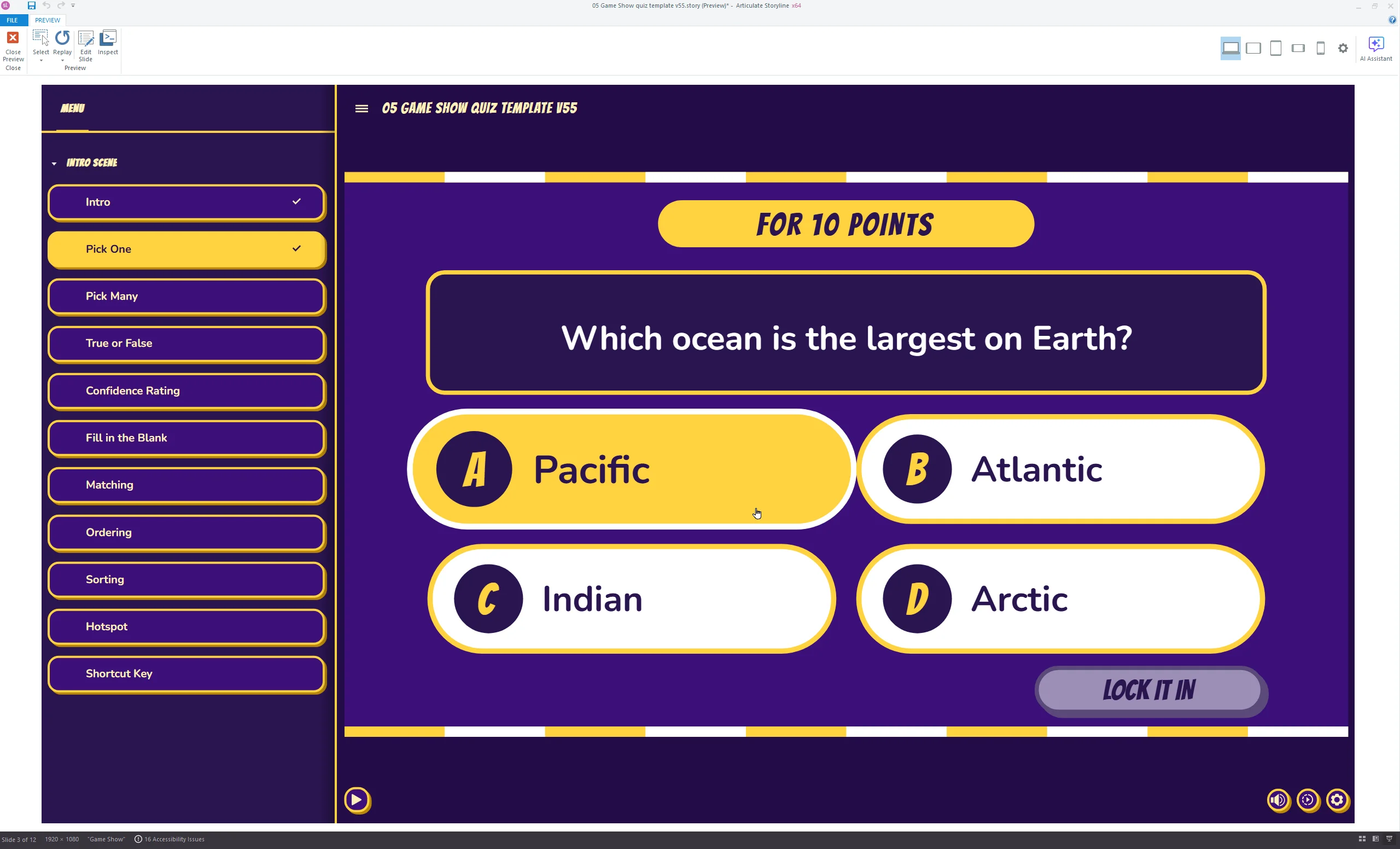
Each template has 12 slides: an intro, ten question slides and a Results slide. Nine of the ten questions are scored at 10 points each, so the quiz is worth 90 points. The pass mark is 80%, which is 8 of 9. The tenth question, Confidence Rating, is not scored.
Recall: Fill in the Blank
Fill in the Blank asks the learner to produce the answer with nothing to pick from. That makes it the closest thing here to real recall.
Use it for terms, codes and numbers people need to know cold. Avoid it when several spellings are reasonable and you have not listed them. Few things annoy a learner more than typing the right answer and being marked wrong.
Recognition: Pick One, Pick Many, True or False
These three test whether a learner can spot the right answer when it is in front of them. That is a lower bar than recall, and it is fine for plenty of jobs.
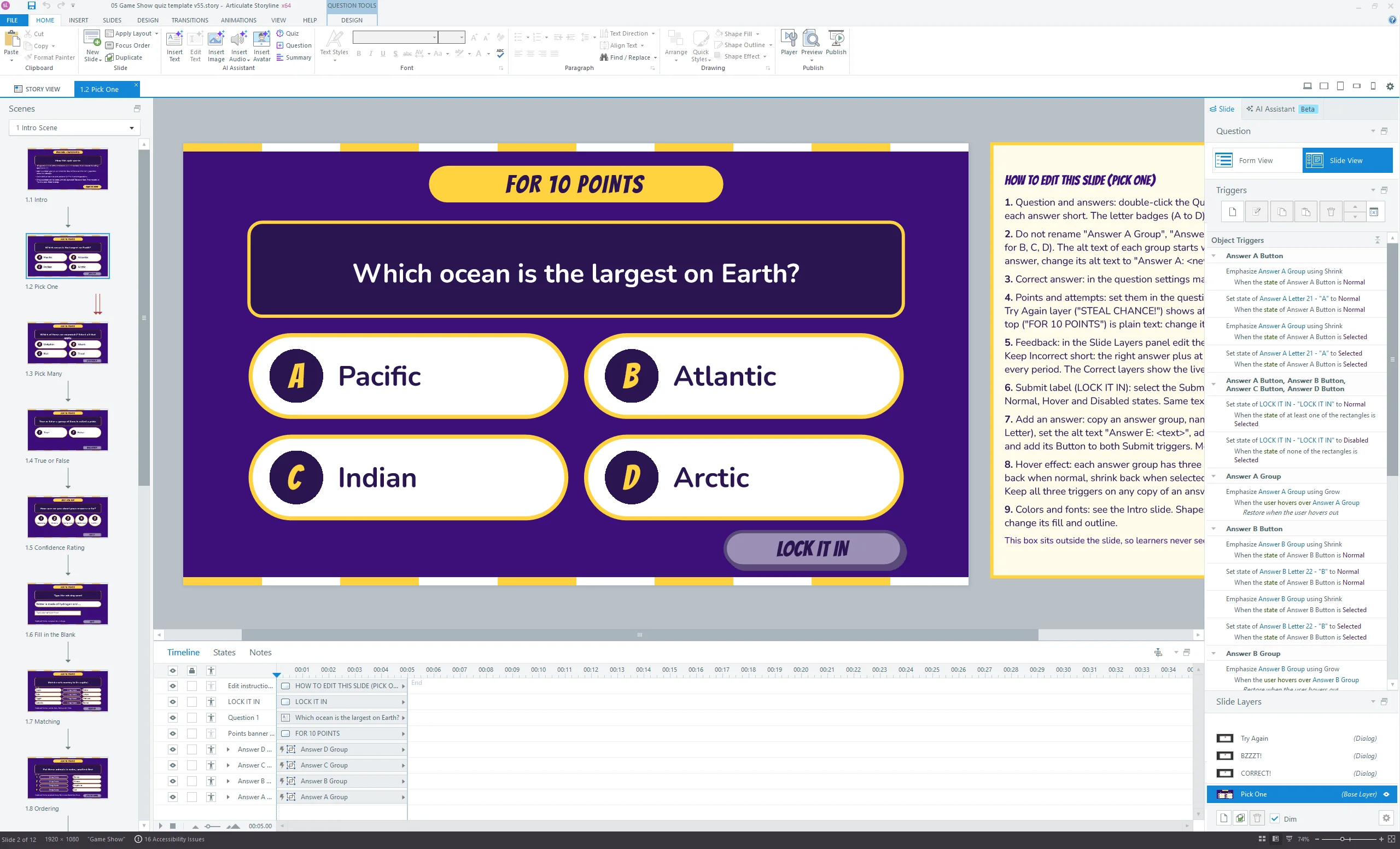
Pick One suits a single clear best answer. Pick Many suits a set, like which of these are warning signs, and it is harder because there is no single target to hunt for. True or False is the weakest of the three, since a guess is right half the time. I keep it for common misconceptions, where the false statement is something people actually believe.
The misuse to avoid is the throwaway distractor. If two of four options are obviously silly, you are really asking a two-choice question.
Judgment: Hotspot
Hotspot asks the learner to click the right part of an image. It works when the skill is looking: finding the hazard in a scene, the wrong field on a form, the odd detail in a layout.
Misuse: using it for facts with no visual home. A hotspot on a picture that carries no information is just a Pick One with extra steps.
Sequencing: Ordering
Ordering tests whether someone knows what comes first, next and last. Use it for procedures, escalation paths and anything where the order is the point.
Skip it for lists that are not really sequential. If the steps can happen in any order, the "correct" order is arbitrary and you are grading memory of your slide deck.
Categorizing: Sorting and Matching
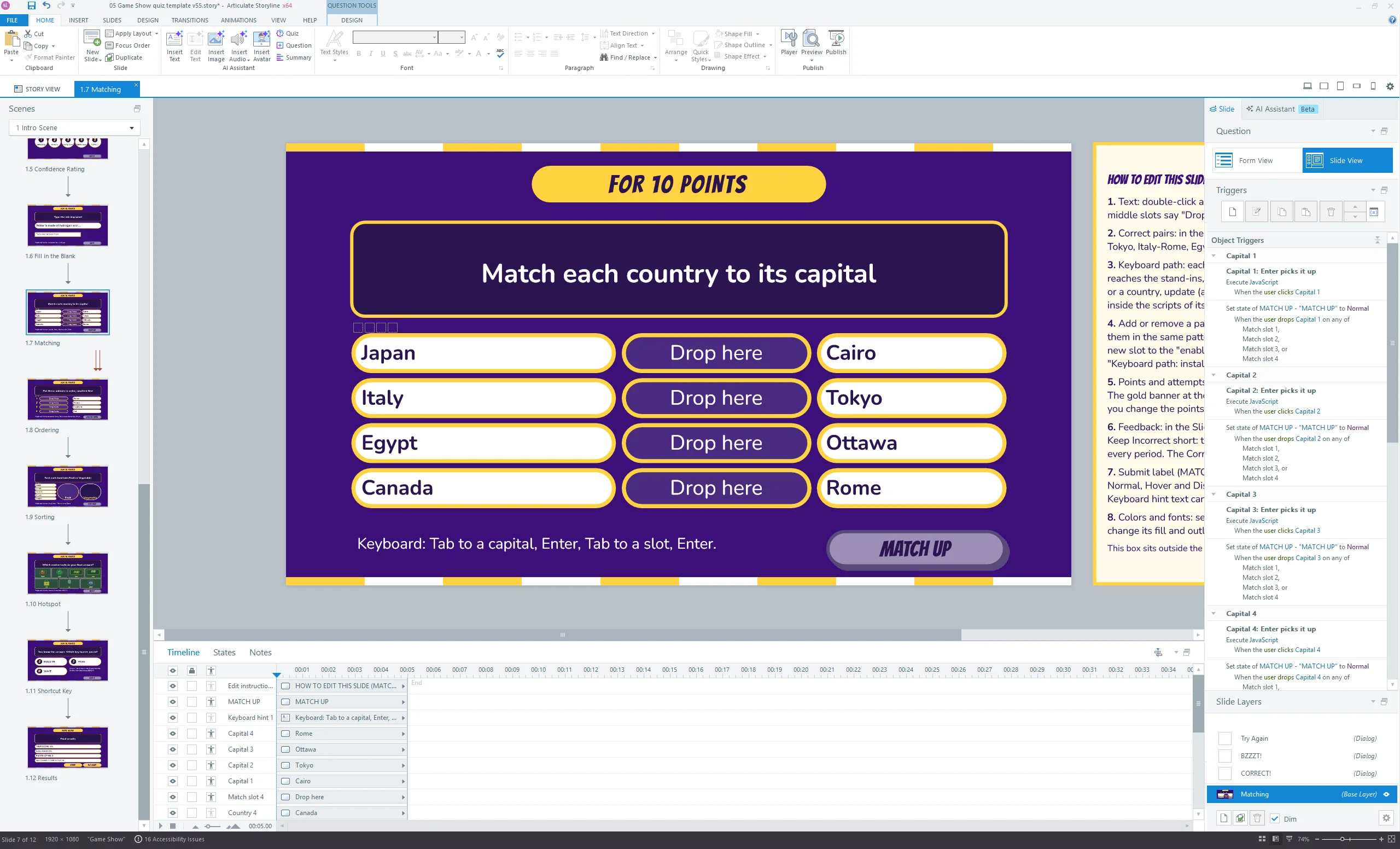
Sorting asks which group an item belongs in. Matching pairs one item with another, like a term and its definition or a symptom and its cause.
Both check that learners can apply a rule to new examples. Keep the groups clean. If an item could reasonably go in two places, you will spend your time on complaints instead of learning.
Speed: Shortcut Key
Shortcut Key submits the answer with a single key press. It suits quick-fire review, where speed matters more than careful reading.
Misuse: putting a long scenario behind it. A key press feels like a reflex, so the question should be short enough to answer like one.
Confidence: Confidence Rating
This one is not scored. The learner rates how sure they are, and the template stores the answer in a variable.
I like it right after a scored question. A learner who is confident and wrong needs different follow-up than one who is unsure and wrong. You can branch on the variable or just read it in your reporting. The misuse is scoring it. Once it counts for points, people stop answering honestly.
Keyboard access, including drag and drop
Every question can be completed from the keyboard alone. Drag and drop is the tricky part. The player does not let learners Tab to draggable objects, so the template adds a hidden keyboard stand-in for each item.
A learner tabs to an item and presses Enter, then tabs to a drop spot and presses Enter. Either order works. Pressing Enter on the same item again cancels. A polite live region announces "Picked up" and "Put down" along with the item name.
JavaScript is used only for that keyboard path on Matching, Ordering and Sorting. Hover is native Storyline, and everything else is states, triggers and layers.
Mix them on purpose
You do not need all ten in one quiz. Pick the formats that match what the job requires. A safety refresher might lean on Hotspot and Ordering. A product knowledge quiz might use Fill in the Blank and Matching.
If you want all ten already built, with scoring, feedback and a Results slide, the Game Show Quiz Template is a Storyline 360 file you open and fill with your own questions. It needs the Storyline 360 desktop app.
Nathan Stoker
I build custom eLearning in Storyline, Rise and JavaScript, and I make the free tools and templates on this site. Need an interaction like this in your course? Let's talk.