How to Make Storyline Drag and Drop Work With Only a Keyboard
By Nathan Stoker · November 2, 2026 · 5 min read
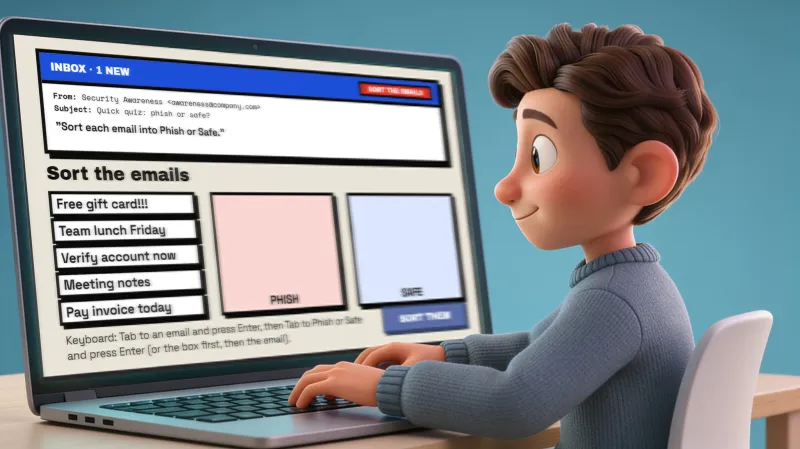
Drag and drop is the question type learners seem to enjoy most. It's also the one most likely to lock someone out. If you get around with a keyboard, a switch or a screen reader, a native Storyline drag-and-drop slide can stop you cold.
That isn't me picking on Articulate. Their own Storyline 360 accessibility maturity plan says drag-and-drop interactions don't currently support full keyboard access, and lists the fix as planned.
When I built the Phish Alert quiz template, I gave myself one rule: every question has to work from the keyboard alone, drag questions included. This build note covers the pattern I use, the WCAG criteria behind it, and a mistake that's easy to miss.
If you'd rather pull apart a finished build, the Phish Alert Quiz Template has Matching, Ordering and Sorting questions you can open and tab through yourself.
[Screenshot: Phish Alert sorting slide with one item picked up. Alt text: "Phish Alert sorting question in Storyline 360 with a keyboard-selected item outlined"]
What WCAG actually asks for
Three success criteria matter here.
2.1.1 Keyboard (Level A). Everything a learner can do with a mouse has to be doable with a keyboard. A drag that only listens for the pointer fails this one outright.
2.5.7 Dragging Movements (Level AA). Anything done by dragging also needs a single-pointer way to do it, like tap the item, then tap where it goes. This one is new in WCAG 2.2. If your organization still targets 2.1 AA it isn't required yet, but the pattern below covers it anyway.
4.1.3 Status Messages (Level AA). When something changes on screen without focus moving, like an item landing in a box, screen reader users need to hear about it. ARIA live regions handle that.
The pattern: pick it up, put it down
Don't try to make the keyboard fake a drag. Split the drag into two choices instead.
- Tab to a drag item and press Enter. Storyline won't Tab to a draggable object, so each item has a hidden keyboard stand-in that takes focus. The item shows a thick outline so everyone can see it's picked up, and a screen reader says "Picked up Spoofed sender."
- Tab to a drop spot and press Enter. The item moves there. You can also choose the drop spot first and the item second.
- Press Enter on the same item again if you change your mind, and it goes back where it started.
The same two steps work with a mouse click or a tap, which is what 2.5.7 is after. People who like dragging can still drag. You're adding a second way in, not taking one away.
Building it in Storyline
You don't need a pile of code for this. Most of it is states, variables and triggers you already use.
- Give every drag item and drop target accessibility text a screen reader can read. "Spoofed sender" beats "Rectangle 14".
- Storyline doesn't put draggable objects in the Tab order. Add a small transparent stand-in shape for each item, in a row above the drop zones, so keyboard focus has somewhere to land. Name each one "Pick up: Spoofed sender".
- Make the picked-up state more than a color shift, like a thick outline, so it works for people who can't tell the colors apart.
- Open the Tab Order dialog and check that focus moves the way the slide reads.
- Reach for Execute JavaScript only where native triggers can't do it. In Phish Alert, a few short scripts turn Enter on a stand-in or a drop spot into the drag and announce what happened. Everything else is native Storyline.
For announcements, this helper adds a polite live region to the page and drops a message into it. You don't need to follow every line. Paste it into an Execute JavaScript trigger and change the message.
// Announce a message to screen readers without moving focus
function announce(msg) {
  var region = document.getElementById('dnd-live');
  if (!region) {
    region = document.createElement('div');
    region.id = 'dnd-live';
    region.setAttribute('role', 'status');
    region.setAttribute('aria-live', 'polite');
    // Visually hidden, still read by screen readers
    region.style.cssText = 'position:absolute;width:1px;height:1px;' +
      'overflow:hidden;clip:rect(0 0 0 0);white-space:nowrap;';
    document.body.appendChild(region);
  }
  // Clear first so a repeated message is read again
  region.textContent = '';
  setTimeout(function () { region.textContent = msg; }, 50);
}

announce('Spoofed sender placed in Report it.');
Call it after each pick up and each drop, with the item's name and where it went. Keep the messages short. A polite region waits for the screen reader to finish what it's already saying, so nobody gets cut off mid-sentence.
The mistake that gives away the answer
This one cost me a rebuild. If focus moves through items in the order you created them, and you created them in answer order, a keyboard user can tab straight through the answer key. Shuffling the items on screen doesn't help, because the focus order still matches the build order.
Make focus follow what's on screen, top to bottom and left to right, not the order the objects were made. Then publish and tab through it again to be sure.
Tell people how it works
Keyboard support nobody knows about doesn't help anyone. Put the keys on the slide, right next to the question. Every slide in Phish Alert has its own keyboard instructions for this reason. Something like "Press Enter to pick up an item, then Enter on a box to place it" is plenty.
[Screenshot: on-slide keyboard instructions. Alt text: "Keyboard instructions on a Phish Alert drag question in Storyline 360"]
Test it like a keyboard user
Put the mouse in a drawer and run the published course.
- Can you reach every item and every target with Tab?
- Can you always see where focus is? That's 2.4.7 Focus Visible.
- Can you undo a placement?
- With NVDA or VoiceOver running, do you hear what you picked up and where it went?
If any answer is no, fix it before it ships.
Wrapping up
The fix isn't fancy. You trade one gesture for two choices and make sure people know how to use them. Once it's built, you can reuse it on every drag slide you make.
Want to see it running? Grab the Phish Alert Quiz Template, open the .story file and tab through the Matching, Ordering and Sorting slides. Then pull the pattern into your own projects.