Creating Dynamic Text Animations in Storyline: A Complete Guide
By Nathan Stoker · November 5, 2024 · 6 min read
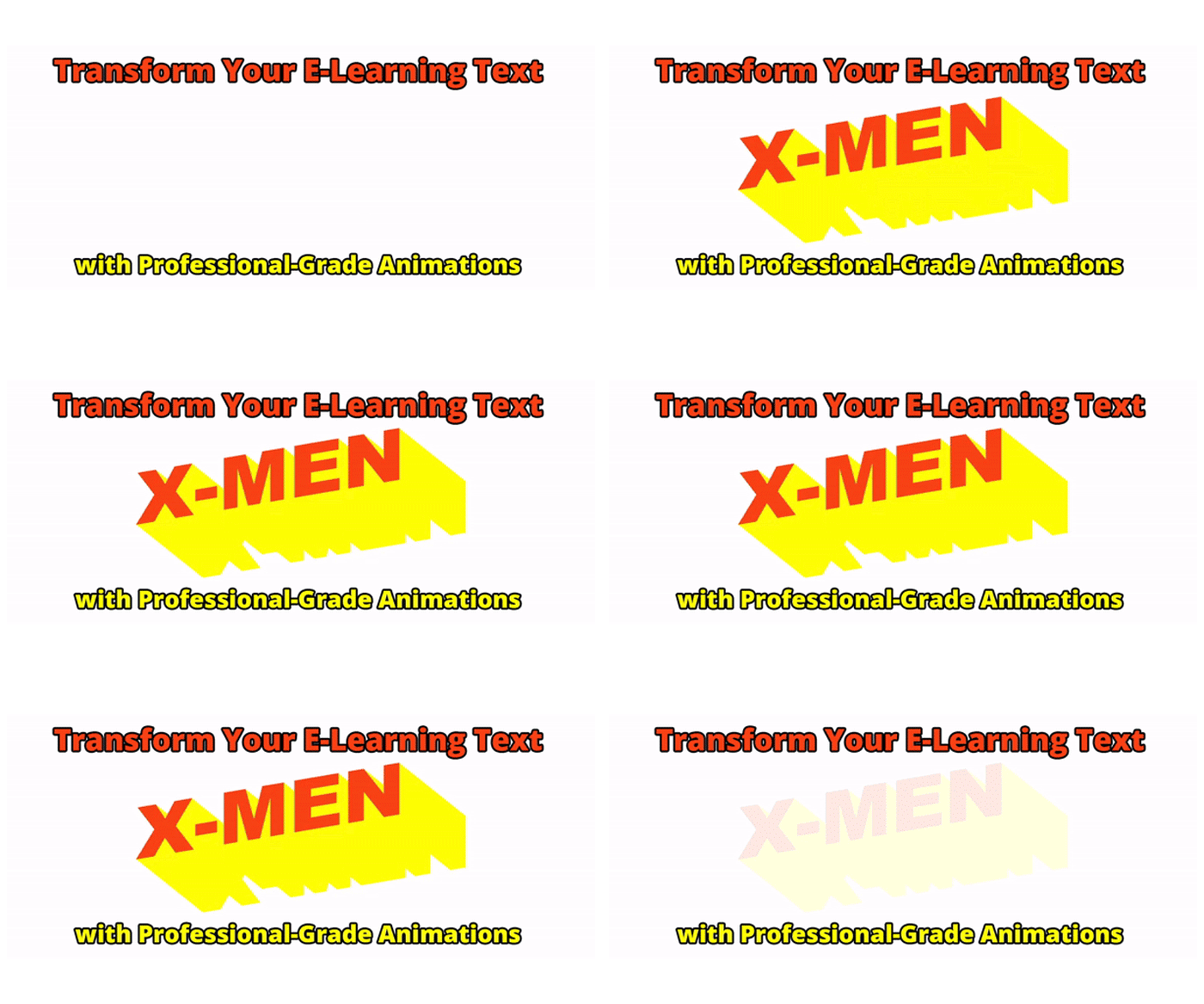
Text animations can bring life to your e-learning content. Here's a powerful function that creates dynamic text effects with shadows, colors, and bouncing letter animations.
Demo can be found in the header.
Key Features
Custom font and shadow styling
Letter-by-letter animation with bounce effects
Rotation and skew transformations
Configurable timing and delays
Important Limitation
This animation only supports shadows extending to the right. CSS text-shadows stack in the order they're declared - like a pile of cards. When shadows go right, each shadow is visible behind the next, but when going left, each new shadow covers the previous ones, making proper depth impossible. For best results, stick to right-up and right-down shadow directions.
Understanding the Parameters
Each parameter in the animateTextBox function serves a specific purpose in creating your text animation:
fontColor: Sets your text color using hex codes (e.g., '#f94115' for orange-red). Choose vibrant colors for dramatic effects or subtle shades for professional looks.
shadowColor: Defines the color of your text shadow (e.g., '#fffe03' for bright yellow). This creates the depth effect behind your text. Try matching or contrasting with your font color for different effects.
shadowThickness: Controls how far your shadow extends (e.g., 150 layers). Higher numbers create more dramatic shadows:
8-20: Subtle depth
50-100: Medium effect
100-200: Dramatic impact
shadowDirection: Determines shadow orientation:
'right-down': Shadow extends down and right (classic drop shadow)
'right-up': Shadow extends up and right (lifting effect)
delay: Sets how long to wait before starting the animation, in seconds. Use this to create sequential animations:
0: Immediate start
0.5: Half-second delay
1+: Longer delays for staged effects
skewDegree: Tilts your text left or right (-360 to 360 degrees):
Positive numbers: Tilt right
Negative numbers: Tilt left
0: No tilt
rotateDegree: Rotates your text (-360 to 360 degrees):
Positive numbers: Clockwise rotation
Negative numbers: Counter-clockwise rotation
0: No rotation
accText: Should match your text object's alt text in Storyline exactly. This is how the function finds the right text to animate.
The Magic Behind the Animation: Accessibility Text as Selector
The real power of this function lies in how it finds and targets text in Storyline. When you create a text object in Storyline, each object has an accessibility label (alt text) that you can customize. This function uses that accessibility text as a unique selector to find and animate your text. By matching the accText parameter with your Storyline object's alt text (e.g., 'X-MEN', 'Iceman'), the function can precisely target the right text object for animation. This is why it's crucial to make sure your alt text in Storyline exactly matches what you pass to the function. Not only does this approach make the animation reliable, but it also maintains accessibility standards since screen readers can properly identify your text content.
For even more precise targeting, there's an alternative version of this function that uses Storyline's data model IDs instead of alt text. The data model version is more reliable as it uses Storyline's unique internal identifiers, but requires a bit more setup to implement. You can download that version in our store for more advanced implementations.
Creating Different Text Effects
Let's look at three different animation styles you can create with this function:
1. Dramatic Superhero Text
animateTextBox('#f94115', '#fffe03', 150, 'right-down', 0.5, -10, -10, 'X-MEN');
This creates a bold, comic-book style effect:
Bright orange text (
#f94115) with yellow shadows (#fffe03)Deep shadow depth (150 layers) for that classic superhero pop
Right-down shadow direction for a grounded, powerful look
Quick 0.5 second delay for immediate impact
Slight -10 degree skew and rotation gives it that dynamic, action-ready feel
2. Cool, Icy Effect
animateTextBox('#1d90f3', '#8bd3fb', 55, 'right-up', 1, 10, 10, 'Iceman');
Perfect for winter themes or cool effects:
Light blue text (
#1d90f3) with lighter blue shadows (#8bd3fb)Medium shadow depth (55 layers) creates a frosty glow
Right-up shadow makes the text appear to float like ice
1 second delay lets previous animations complete
Positive skew and rotation (10 degrees) suggests upward motion
3. Subtle Professional Title
animateTextBox('#5242a5', '#a6a4d8', 8, 'right-down', 1.25, 0, 0, 'Starring in The Ole West');
A more reserved animation for professional content:
Purple text (
#5242a5) with light purple shadow (#a6a4d8)Minimal shadow depth (8 layers) for subtle enhancement
Right-down shadow keeps it grounded
Longer 1.25 second delay for a measured entrance
No skew or rotation (0 degrees) maintains professionalism
Tips for Best Results
Keep shadow thickness below 200 for better performance
Use 0.5-2 second delays between animations
Match animation style to content tone
Test across different devices and browsers
Make sure your text object's alt text in Storyline matches the
accTextparameter
The Complete Codefunction animateTextBox(fontColor, shadowColor, shadowThickness, shadowDirection, delay, skewDegree, rotateDegree, accText) {
// Step 1: Select the text box element
var textBox = document.querySelector(`[data-acc-text="${accText}"]`);
if (!textBox) {
console.error(`Text box with data-acc-text '${accText}' not found.`);
return;
}


// Step 2: Extract font information
function findFontInfo(element) {
if (element.tagName.toLowerCase() === 'text') {
return {
fontFamily: element.getAttribute('font-family'),
fontSize: element.getAttribute('font-size'),
fontWeight: element.style.fontWeight || 'normal'
};
}
for (let child of element.children) {
let result = findFontInfo(child);
if (result) return result;
}
return null;
}


var fontInfo = findFontInfo(textBox);
if (!fontInfo) {
console.error('Could not find font information');
return;
}


// Step 3: Clean up font family string
fontInfo.fontFamily = fontInfo.fontFamily
.replace(/"/g, '')
.replace(/"/g, '')
.replace(/'/g, '')
.trim();
if (/[\s_]/.test(fontInfo.fontFamily)) {
fontInfo.fontFamily = `"${fontInfo.fontFamily}"`;
}


// Step 4: Apply styles
textBox.style.fontFamily = fontInfo.fontFamily;
textBox.style.fontSize = fontInfo.fontSize;
textBox.style.fontWeight = fontInfo.fontWeight;
textBox.style.display = 'flex';
textBox.style.alignItems = 'center';
textBox.style.justifyContent = 'center';
textBox.style.textAlign = 'center';


// Step 5: Set up shadow direction
let shadowX = 1;
let shadowY;
if (shadowDirection === 'right-down') {
shadowY = 1;
} else if (shadowDirection === 'right-up') {
shadowY = -1;
} else {
console.error('Invalid shadow direction. Use "right-down" or "right-up".');
return;
}


// Step 6: Apply text color and shadow
textBox.style.color = fontColor;
textBox.style.textShadow = Array.from({ length: shadowThickness }, (_, i) =>
`${shadowColor} ${shadowX * (i + 1)}px ${shadowY * (i + 1)}px`
).join(', ');


// Step 7: Apply transformations
textBox.style.transform += ` skew(${skewDegree}deg) rotate(${rotateDegree}deg)`;
textBox.style.zIndex = '9999';


// Step 8: Set up letter animation
var originalText = textBox.textContent.trim();
let letters = originalText.split('').map((letter, index) => {
return `<span style="display: inline-block; font-family: ${fontInfo.fontFamily}; font-size: ${fontInfo.fontSize}; font-weight: ${fontInfo.fontWeight}; opacity: 0; z-index: ${index}; position: relative;">${letter}</span>`;
}).join('');


textBox.innerHTML = letters;


// Step 9: Create animation timeline
var tl = gsap.timeline({ delay: delay });
tl.staggerFromTo(textBox.querySelectorAll('span'), 0.5,
{ ease: Back.easeOut.config(1.7), opacity: 0, y: -80 },
{ ease: Back.easeOut.config(1.7), opacity: 1, y: 0 },
0.05
);
}
Now you have everything needed to create engaging text animations in your Storyline projects!
See video.