Build an Interactive Jeopardy Game for E-Learning with HTML and React
By Nathan Stoker · June 7, 2026 · 12 min read
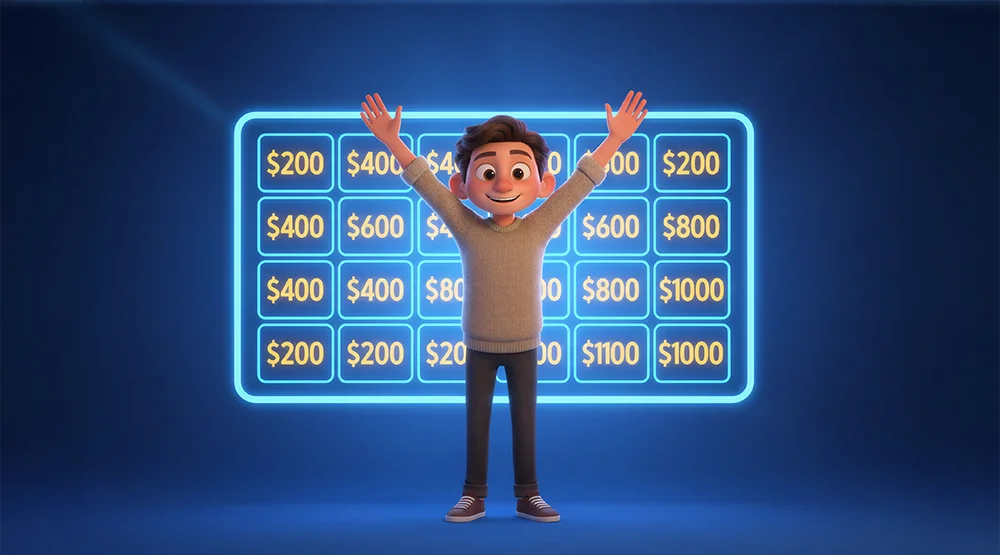
Want to add a game show element to your training? This Jeopardy-style trivia game brings competition and excitement to any e-learning course. Best of all, it works in Articulate Rise 360, Articulate Storyline (as a web object), SharePoint, or as a standalone webpage.
In this tutorial, you'll learn how to create a fully functional Jeopardy game board complete with team scoring, customizable colors, accessibility features, and keyboard navigation. Whether you're building compliance training, onboarding modules, or educational content, gamification increases learner engagement and knowledge retention.
Check out the demo (link in header) and copy the code below to follow along.
<!DOCTYPE html>
<html lang="en">
<head>
<meta charset="UTF-8">
<meta name="viewport" content="width=device-width, initial-scale=1.0">
<title>Jeopardy Game</title>
<script src="https://cdn.tailwindcss.com"></script>
<script crossorigin src="https://unpkg.com/react@18/umd/react.production.min.js"></script>
<script crossorigin src="https://unpkg.com/react-dom@18/umd/react-dom.production.min.js"></script>
<script src="https://unpkg.com/@babel/standalone/babel.min.js"></script>
</head>
<body>
<div id="root"></div>
<script type="text/babel">
// Config
const INITIAL_TEAMS = [
{ id: 0, name: "Team 1", score: 0 },
{ id: 1, name: "Team 2", score: 0 }
];
const DEFAULT_COLORS = {
background: '#1e3a8a',
board: '#1e40af',
cell: '#2563eb',
cellHover: '#3b82f6',
text: '#fbbf24',
selectedCell: '#172554'
};
// Questions
const QUESTIONS = {
"History": [
{ value: 200, question: "This ancient wonder was built as a tomb for Pharaoh Khufu", answer: "What is the Great Pyramid of Giza?" },
{ value: 400, question: "In 1066, this battle changed the course of English history", answer: "What is the Battle of Hastings?" },
{ value: 600, question: "This document was signed in 1215, limiting the power of the English king", answer: "What is the Magna Carta?" },
{ value: 800, question: "This empire was ruled by Genghis Khan in the 13th century", answer: "What is the Mongol Empire?" },
{ value: 1000, question: "This treaty ended World War I in 1919", answer: "What is the Treaty of Versailles?" }
],
"Science": [
{ value: 200, question: "This is the closest planet to the Sun", answer: "What is Mercury?" },
{ value: 400, question: "H2O is the chemical formula for this", answer: "What is water?" },
{ value: 600, question: "This scientist developed the theory of general relativity", answer: "Who is Albert Einstein?" },
{ value: 800, question: "This is the powerhouse of the cell", answer: "What is mitochondria?" },
{ value: 1000, question: "This fundamental force is responsible for radioactive decay", answer: "What is the weak nuclear force?" }
],
"Geography": [
{ value: 200, question: "This is the largest ocean on Earth", answer: "What is the Pacific Ocean?" },
{ value: 400, question: "This African country has the most pyramids", answer: "What is Sudan?" },
{ value: 600, question: "This is the smallest country in the world", answer: "What is Vatican City?" },
{ value: 800, question: "This river flows through the Grand Canyon", answer: "What is the Colorado River?" },
{ value: 1000, question: "This is the only country that borders both the Atlantic and Indian Oceans", answer: "What is South Africa?" }
],
"Literature": [
{ value: 200, question: "This wizard attends Hogwarts School", answer: "Who is Harry Potter?" },
{ value: 400, question: "This author wrote 'Pride and Prejudice'", answer: "Who is Jane Austen?" },
{ value: 600, question: "This epic poem tells the story of Odysseus' journey home", answer: "What is The Odyssey?" },
{ value: 800, question: "This novel begins: 'Call me Ishmael'", answer: "What is Moby-Dick?" },
{ value: 1000, question: "This Russian author wrote 'Crime and Punishment'", answer: "Who is Fyodor Dostoevsky?" }
],
"Pop Culture": [
{ value: 200, question: "This streaming service is known for its red logo and original series", answer: "What is Netflix?" },
{ value: 400, question: "This artist sang 'Thriller' in 1982", answer: "Who is Michael Jackson?" },
{ value: 600, question: "This superhero team includes Iron Man, Thor, and Captain America", answer: "What are The Avengers?" },
{ value: 800, question: "This TV show featured characters living in Central Perk", answer: "What is Friends?" },
{ value: 1000, question: "This video game plumber has a brother named Luigi", answer: "Who is Mario?" }
]
};
// Main Game Component
const JeopardyGame = () => {
const [teams, setTeams] = React.useState(INITIAL_TEAMS);
const [currentTeam, setCurrentTeam] = React.useState(0);
const [currentQuestion, setCurrentQuestion] = React.useState(null);
const [selectedQuestions, setSelectedQuestions] = React.useState({});
const [showModal, setShowModal] = React.useState(false);
const [showAnswer, setShowAnswer] = React.useState(false);
const [showSettings, setShowSettings] = React.useState(false);
const [colors, setColors] = React.useState(DEFAULT_COLORS);
const [fontSize, setFontSize] = React.useState(1);
const [highContrast, setHighContrast] = React.useState(false);
const getQuestion = (category, value) => {
const categoryQuestions = QUESTIONS[category];
return categoryQuestions.find(q => q.value === value);
};
const handleCellClick = (category, value) => {
if (selectedQuestions[`${category}-${value}`]) return;
const question = getQuestion(category, value);
setCurrentQuestion({ category, value, ...question });
setShowModal(true);
setShowAnswer(false);
};
const handleAnswer = (isCorrect) => {
const points = isCorrect ? currentQuestion.value : -currentQuestion.value;
setTeams(teams.map(team =>
team.id === currentTeam
? { ...team, score: team.score + points }
: team
));
setSelectedQuestions({
...selectedQuestions,
[`${currentQuestion.category}-${currentQuestion.value}`]: true
});
setShowModal(false);
setCurrentQuestion(null);
setShowAnswer(false);
setCurrentTeam(currentTeam === teams.length - 1 ? 0 : currentTeam + 1);
};
const handleColorChange = (key, value) => {
setColors({ ...colors, [key]: value });
};
const resetColors = () => {
setColors(DEFAULT_COLORS);
};
const applyHighContrast = () => {
if (!highContrast) {
setColors({
background: '#000000',
board: '#000000',
cell: '#000000',
cellHover: '#1a1a1a',
text: '#ffff00',
selectedCell: '#0a0a0a'
});
} else {
setColors(DEFAULT_COLORS);
}
setHighContrast(!highContrast);
};
const categories = Object.keys(QUESTIONS);
const values = [200, 400, 600, 800, 1000];
const currentColors = colors;
// Arrow key navigation
React.useEffect(() => {
const handleKeyDown = (e) => {
if (showModal || showSettings) return;
const focused = document.activeElement;
const gridId = focused.getAttribute('data-grid-id');
if (!gridId) return;
const [catIndex, valueIndex] = gridId.split('-').map(Number);
let newCatIndex = catIndex;
let newValueIndex = valueIndex;
if (e.key === 'ArrowRight') {
e.preventDefault();
newCatIndex = Math.min(catIndex + 1, categories.length - 1);
} else if (e.key === 'ArrowLeft') {
e.preventDefault();
newCatIndex = Math.max(catIndex - 1, 0);
} else if (e.key === 'ArrowDown') {
e.preventDefault();
newValueIndex = Math.min(valueIndex + 1, values.length - 1);
} else if (e.key === 'ArrowUp') {
e.preventDefault();
newValueIndex = Math.max(valueIndex - 1, 0);
}
const newElement = document.querySelector(`[data-grid-id="${newCatIndex}-${newValueIndex}"]`);
if (newElement) {
newElement.focus();
}
};
document.addEventListener('keydown', handleKeyDown);
return () => document.removeEventListener('keydown', handleKeyDown);
}, [showModal, showSettings, categories.length, values.length]);
return (
<div
className="p-4"
style={{
backgroundColor: currentColors.background,
fontSize: `${fontSize}rem`,
minHeight: '100vh',
display: 'flex',
flexDirection: 'column'
}}
>
<div className="flex justify-between items-start mb-4">
<h1
className="text-5xl font-bold text-center flex-1"
style={{
fontFamily: 'serif',
color: currentColors.text,
fontSize: `${fontSize * 3}rem`
}}
>
JEOPARDY!
</h1>
<button
onClick={() => setShowSettings(!showSettings)}
className="px-4 py-2 rounded font-bold"
style={{
backgroundColor: currentColors.cell,
color: currentColors.text
}}
>
{showSettings ? 'Hide Settings' : 'Settings'}
</button>
</div>
{showSettings && (
<div
className="mb-6 p-6 rounded-lg max-w-4xl mx-auto"
style={{ backgroundColor: currentColors.board }}
>
<h2
className="text-2xl font-bold mb-4"
style={{ color: currentColors.text }}
>
Customize Colors & Accessibility
</h2>
<div className="grid grid-cols-2 gap-4 mb-4">
{Object.keys(colors).map(key => (
<div key={key}>
<label
className="block mb-2 capitalize"
style={{ color: currentColors.text }}
>
{key.replace(/([A-Z])/g, ' $1').trim()}:
</label>
<div className="flex gap-2">
<input
type="color"
value={colors[key]}
onChange={(e) => handleColorChange(key, e.target.value)}
className="w-20 h-10 rounded cursor-pointer"
/>
<input
type="text"
value={colors[key]}
onChange={(e) => handleColorChange(key, e.target.value)}
className="flex-1 px-2 rounded"
style={{
backgroundColor: currentColors.cell,
color: currentColors.text
}}
/>
</div>
</div>
))}
</div>
<div className="mb-4">
<label
className="block mb-2"
style={{ color: currentColors.text }}
>
Font Size: {fontSize.toFixed(1)}x
</label>
<input
type="range"
min="0.8"
max="2"
step="0.1"
value={fontSize}
onChange={(e) => setFontSize(parseFloat(e.target.value))}
className="w-full"
/>
</div>
<div className="flex gap-4">
<button
onClick={resetColors}
className="px-6 py-2 rounded font-bold"
style={{
backgroundColor: currentColors.cell,
color: currentColors.text
}}
>
Reset Colors
</button>
<button
onClick={applyHighContrast}
className="px-6 py-2 rounded font-bold"
style={{
backgroundColor: currentColors.cell,
color: currentColors.text
}}
>
{highContrast ? 'Disable' : 'Enable'} High Contrast
</button>
</div>
</div>
)}
<div className="mb-6 flex justify-center gap-6">
{teams.map((team, index) => (
<div
key={team.id}
className={`rounded-lg p-4 min-w-[180px] ${
index === currentTeam ? 'ring-4' : ''
}`}
style={{
backgroundColor: currentColors.board,
ringColor: currentColors.text
}}
>
<div
className="text-xl font-bold mb-2"
style={{ color: currentColors.text }}
>
{team.name}
</div>
<div
className="text-3xl font-bold"
style={{ color: '#ffffff' }}
>
${team.score}
</div>
</div>
))}
</div>
<div className="max-w-7xl mx-auto flex-grow">
<div className="grid grid-cols-5 gap-1">
{categories.map(category => (
<div
key={category}
className="p-3 text-center"
style={{ backgroundColor: currentColors.board }}
>
<div
className="font-bold text-base uppercase"
style={{ color: currentColors.text }}
>
{category}
</div>
</div>
))}
{values.map((value, valueIndex) =>
categories.map((category, catIndex) => {
const isSelected = selectedQuestions[`${category}-${value}`];
return (
<div
key={`${category}-${value}`}
data-grid-id={`${catIndex}-${valueIndex}`}
onClick={() => !isSelected && handleCellClick(category, value)}
tabIndex={isSelected ? -1 : 0}
onKeyDown={(e) => {
if (e.key === 'Enter' || e.key === ' ') {
e.preventDefault();
if (!isSelected) handleCellClick(category, value);
}
}}
className="flex items-center justify-center text-3xl font-bold transition-colors py-4"
style={{
backgroundColor: isSelected ? currentColors.selectedCell : currentColors.cell,
color: isSelected ? currentColors.selectedCell : currentColors.text,
cursor: isSelected ? 'not-allowed' : 'pointer'
}}
onMouseEnter={(e) => {
if (!isSelected) e.target.style.backgroundColor = currentColors.cellHover;
}}
onMouseLeave={(e) => {
if (!isSelected) e.target.style.backgroundColor = currentColors.cell;
}}
>
{isSelected ? '' : `${value}`}
</div>
);
})
)}
</div>
</div>
{showModal && currentQuestion && (
<div
className="fixed inset-0 flex items-center justify-center p-4 z-50"
style={{ backgroundColor: 'rgba(0, 0, 0, 0.75)' }}
>
<div
className="rounded-lg p-8 max-w-2xl w-full"
style={{ backgroundColor: currentColors.background }}
>
<div
className="text-sm mb-2"
style={{ color: currentColors.text }}
>
{currentQuestion.category}
</div>
<div
className="text-3xl font-bold mb-6"
style={{ color: '#ffffff' }}
>
${currentQuestion.value}
</div>
<div
className="rounded p-6 mb-6"
style={{ backgroundColor: currentColors.board }}
>
<div
className="text-xl mb-4"
style={{ color: '#ffffff' }}
>
{currentQuestion.question}
</div>
{!showAnswer ? (
<button
onClick={() => setShowAnswer(true)}
className="px-6 py-3 rounded font-bold transition-colors"
style={{
backgroundColor: currentColors.text,
color: currentColors.background
}}
>
Show Answer
</button>
) : (
<div
className="text-2xl font-bold mt-4"
style={{ color: '#4ade80' }}
>
{currentQuestion.answer}
</div>
)}
</div>
{showAnswer && (
<div className="flex gap-4 justify-center">
<button
onClick={() => handleAnswer(true)}
className="px-8 py-3 rounded font-bold transition-colors"
style={{
backgroundColor: '#16a34a',
color: '#ffffff'
}}
>
Correct
</button>
<button
onClick={() => handleAnswer(false)}
className="px-8 py-3 rounded font-bold transition-colors"
style={{
backgroundColor: '#dc2626',
color: '#ffffff'
}}
>
Incorrect
</button>
</div>
)}
</div>
</div>
)}
</div>
);
};
// Render
const { createRoot } = ReactDOM;
const root = createRoot(document.getElementById('root'));
root.render(<JeopardyGame />);
</script>
</body>
</html>Why Use a Jeopardy Game in E-Learning?
Game-based learning transforms passive content consumption into active participation. A Jeopardy game format offers several advantages for corporate training and educational courses.
First, competition motivates learners. When teams compete for points, engagement naturally increases. Learners pay closer attention to content because they want to answer correctly and help their team win.
Second, the question-and-answer format reinforces recall. Rather than simply reading information, learners must actively retrieve knowledge from memory. This retrieval practice strengthens long-term retention according to cognitive science research on learning.
Third, the familiar format reduces friction. Most people already know how Jeopardy works, so there's no learning curve for the game mechanics. Learners can focus entirely on the content rather than figuring out how to play.
How the Jeopardy E-Learning Interaction Works
This interaction creates a classic game board with five categories and five point values per category. Teams take turns selecting questions, viewing the answer, and marking whether they answered correctly or incorrectly.
The game tracks scores automatically, highlights the current team, and removes answered questions from the board. A settings panel allows instructors or learners to customize colors and enable high-contrast mode for accessibility.
Key Features Overview
The interaction includes several features that make it ideal for e-learning contexts. Team score tracking updates automatically based on correct and incorrect answers. Incorrect answers deduct points, adding strategic tension to the game.
Keyboard navigation allows learners to move through the board using arrow keys. This improves accessibility for keyboard users and screen reader users. The entire interface uses proper focus management and semantic HTML.
The color customization panel lets you match the game to your brand colors or course theme. High-contrast mode provides a black-and-yellow scheme that meets WCAG accessibility standards for color contrast.
Setting Up the Jeopardy Game
You can deploy this game in multiple ways depending on your authoring tool and hosting environment. The single HTML file contains everything needed, making it easy to upload and embed.
Using the Game in Articulate Rise 360
Rise 360 supports multimedia blocks that can embed external HTML content. Upload the HTML file to your organization's web server or content hosting platform. Then add a Multimedia block to your Rise course and paste the URL where you hosted the file.
The game will appear inline within your Rise lesson. Learners can play directly without leaving the course. Make sure your hosting supports HTTPS, as Rise 360 requires secure connections for embedded content.
Using the Game in Articulate Storyline
Storyline supports web objects that display HTML content within slides. To add the Jeopardy game, insert a Web Object from the Insert tab. Browse to the HTML file location or enter a URL if hosting externally.
For local files, place the HTML file in your Storyline project folder. The web object will display the game at whatever size you specify. Consider making it full-slide for the best experience.
You can also trigger the web object to appear based on Storyline variables or layer interactions. This lets you integrate the game into a larger course structure with pre-game instructions and post-game debriefs.
Using the Game in SharePoint
SharePoint modern pages support embedded content through the Embed web part. Upload the HTML file to a SharePoint document library. Copy the file URL and add an Embed web part to your page.
Some organizations restrict embedded HTML for security reasons. Check with your SharePoint administrator if the embed doesn't display. You may need to use an iframe embed code or host the file on an approved domain.
Hosting as a Standalone Webpage
The HTML file runs independently in any modern web browser. Simply open the file directly or upload it to any web server. Share the URL with learners for standalone access outside an LMS.
This approach works well for informal training, team meetings, or conference sessions where you don't need LMS tracking.
Understanding the Code Structure
The game uses React for the user interface and Tailwind CSS for styling. Everything compiles at runtime in the browser, so no build process is required. Let's examine the key sections of the code.
Configuration and Initial State
The code begins with configuration constants that define the starting state. The INITIAL_TEAMS array sets up two teams with names and starting scores of zero. The DEFAULT_COLORS object defines the classic Jeopardy blue and gold color scheme.
const INITIAL_TEAMS = [
  { id: 0, name: "Team 1", score: 0 },
  { id: 1, name: "Team 2", score: 0 }
];

const DEFAULT_COLORS = {
  background: '#1e3a8a',
  board: '#1e40af',
  cell: '#2563eb',
  cellHover: '#3b82f6',
  text: '#fbbf24',
  selectedCell: '#172554'
};
You can modify these values to change the default appearance or add more teams. The game supports any number of teams, though the scoreboard display works best with two to four teams.
Question Data Structure
Questions are organized in a nested object with categories as keys. Each category contains an array of question objects with value, question, and answer properties. The values follow the standard Jeopardy progression: 200, 400, 600, 800, and 1000 points.
const QUESTIONS = {
  "History": [
    { value: 200, question: "This ancient wonder was built as a tomb for Pharaoh Khufu", answer: "What is the Great Pyramid of Giza?" },
    { value: 400, question: "In 1066, this battle changed the course of English history", answer: "What is the Battle of Hastings?" },
    // Additional questions...
  ],
  "Science": [
    // Category questions...
  ]
};
To customize the game for your training content, replace these sample questions with your own. Keep answers in the traditional Jeopardy format of "What is..." or "Who is..." for authenticity, or use plain answers for simplicity.
State Management with React Hooks
The main component uses React's useState hook to track multiple state variables. Each piece of state controls a different aspect of the game experience.
const [teams, setTeams] = React.useState(INITIAL_TEAMS);
const [currentTeam, setCurrentTeam] = React.useState(0);
const [currentQuestion, setCurrentQuestion] = React.useState(null);
const [selectedQuestions, setSelectedQuestions] = React.useState({});
const [showModal, setShowModal] = React.useState(false);
const [showAnswer, setShowAnswer] = React.useState(false);
const [showSettings, setShowSettings] = React.useState(false);
const [colors, setColors] = React.useState(DEFAULT_COLORS);
const [fontSize, setFontSize] = React.useState(1);
const [highContrast, setHighContrast] = React.useState(false);
The selectedQuestions object tracks which questions have been answered using a key format of category-value. This allows quick lookups when rendering the board and prevents learners from selecting the same question twice.
Handling Question Selection and Scoring
When a learner clicks a cell, the handleCellClick function retrieves the corresponding question and displays the modal. The handleAnswer function processes correct and incorrect responses.
const handleAnswer = (isCorrect) => {
  const points = isCorrect ? currentQuestion.value : -currentQuestion.value;
  setTeams(teams.map(team =>
    team.id === currentTeam
      ? { ...team, score: team.score + points }
      : team
  ));

  setSelectedQuestions({
    ...selectedQuestions,
    [`${currentQuestion.category}-${currentQuestion.value}`]: true
  });

  setShowModal(false);
  setCurrentQuestion(null);
  setShowAnswer(false);

  setCurrentTeam(currentTeam === teams.length - 1 ? 0 : currentTeam + 1);
};
Notice that incorrect answers subtract points rather than simply awarding zero. This mechanic discourages random guessing and encourages learners to think carefully before answering.
Implementing Keyboard Navigation
Accessibility requires keyboard support for all interactive elements. The useEffect hook adds keyboard event listeners that enable arrow key navigation through the game board.
React.useEffect(() => {
  const handleKeyDown = (e) => {
    if (showModal || showSettings) return;

    const focused = document.activeElement;
    const gridId = focused.getAttribute('data-grid-id');

    if (!gridId) return;

    const [catIndex, valueIndex] = gridId.split('-').map(Number);
    let newCatIndex = catIndex;
    let newValueIndex = valueIndex;

    if (e.key === 'ArrowRight') {
      newCatIndex = Math.min(catIndex + 1, categories.length - 1);
    } else if (e.key === 'ArrowLeft') {
      newCatIndex = Math.max(catIndex - 1, 0);
    }
    // Additional arrow key handling...
  };

  document.addEventListener('keydown', handleKeyDown);
  return () => document.removeEventListener('keydown', handleKeyDown);
}, [showModal, showSettings, categories.length, values.length]);
Each cell has a data-grid-id attribute that stores its position as categoryIndex-valueIndex. The event listener calculates the new position based on which arrow key was pressed and moves focus to that cell.
Customizing the Jeopardy Game for E-Learning
The settings panel provides runtime customization, but you can also modify the source code for permanent changes. Here are common customization scenarios.
Changing Categories and Questions
Replace the QUESTIONS object content with your training-specific content. Each category needs five questions with values of 200, 400, 600, 800, and 1000 points. Harder questions should have higher point values.
For compliance training, you might have categories like "Safety Procedures," "Reporting Requirements," and "Policy Exceptions." For product training, categories could include "Features," "Pricing," "Competitors," and "Use Cases."
Adjusting Team Configuration
Modify the INITIAL_TEAMS array to change team names or add additional teams. For individual play, use a single team entry. For larger groups, add more team objects to the array.
const INITIAL_TEAMS = [
  { id: 0, name: "Sales", score: 0 },
  { id: 1, name: "Marketing", score: 0 },
  { id: 2, name: "Engineering", score: 0 }
];
Applying Brand Colors
Update the DEFAULT_COLORS object to match your organization's brand guidelines. The color scheme affects the background, board, cells, text, and hover states.
const DEFAULT_COLORS = {
  background: '#your-background-color',
  board: '#your-board-color',
  cell: '#your-cell-color',
  cellHover: '#your-hover-color',
  text: '#your-text-color',
  selectedCell: '#your-selected-color'
};
Ensure sufficient contrast between text and background colors. The WebAIM Contrast Checker helps verify WCAG compliance.
Accessibility Considerations
The game includes several accessibility features that benefit all learners. Keyboard navigation allows users who cannot use a mouse to fully participate. Focus indicators show which element is currently selected.
The high-contrast mode switches to a black background with yellow text. This combination provides maximum contrast for users with low vision or color blindness. The font size slider allows learners to increase text size up to 200%.
All interactive elements are reachable via Tab key navigation. The modal traps focus appropriately so keyboard users don't accidentally navigate behind it. When the modal closes, focus returns to the game board.
For screen reader users, consider adding aria-label attributes to the cells that announce the category and point value. You can also add role="grid" to the board container for better semantic structure.
Complete Code
Below is the full HTML file containing the Jeopardy game. Copy this code into a new HTML file and customize the questions for your training needs.
<!DOCTYPE html>
<html lang="en">
<head>
<meta charset="UTF-8">
<meta name="viewport" content="width=device-width, initial-scale=1.0">
<title>Jeopardy Game</title>
<script src="https://cdn.tailwindcss.com"></script>
<script crossorigin src="https://unpkg.com/react@18/umd/react.production.min.js"></script>
<script crossorigin src="https://unpkg.com/react-dom@18/umd/react-dom.production.min.js"></script>
<script src="https://unpkg.com/@babel/standalone/babel.min.js"></script>
</head>
<body>
<div id="root"></div>
<script type="text/babel">
// Config
const INITIAL_TEAMS = [
{ id: 0, name: "Team 1", score: 0 },
{ id: 1, name: "Team 2", score: 0 }
];
const DEFAULT_COLORS = {
background: '#1e3a8a',
board: '#1e40af',
cell: '#2563eb',
cellHover: '#3b82f6',
text: '#fbbf24',
selectedCell: '#172554'
};
// Questions
const QUESTIONS = {
"History": [
{ value: 200, question: "This ancient wonder was built as a tomb for Pharaoh Khufu", answer: "What is the Great Pyramid of Giza?" },
{ value: 400, question: "In 1066, this battle changed the course of English history", answer: "What is the Battle of Hastings?" },
{ value: 600, question: "This document was signed in 1215, limiting the power of the English king", answer: "What is the Magna Carta?" },
{ value: 800, question: "This empire was ruled by Genghis Khan in the 13th century", answer: "What is the Mongol Empire?" },
{ value: 1000, question: "This treaty ended World War I in 1919", answer: "What is the Treaty of Versailles?" }
],
"Science": [
{ value: 200, question: "This is the closest planet to the Sun", answer: "What is Mercury?" },
{ value: 400, question: "H2O is the chemical formula for this", answer: "What is water?" },
{ value: 600, question: "This scientist developed the theory of general relativity", answer: "Who is Albert Einstein?" },
{ value: 800, question: "This is the powerhouse of the cell", answer: "What is mitochondria?" },
{ value: 1000, question: "This fundamental force is responsible for radioactive decay", answer: "What is the weak nuclear force?" }
],
"Geography": [
{ value: 200, question: "This is the largest ocean on Earth", answer: "What is the Pacific Ocean?" },
{ value: 400, question: "This African country has the most pyramids", answer: "What is Sudan?" },
{ value: 600, question: "This is the smallest country in the world", answer: "What is Vatican City?" },
{ value: 800, question: "This river flows through the Grand Canyon", answer: "What is the Colorado River?" },
{ value: 1000, question: "This is the only country that borders both the Atlantic and Indian Oceans", answer: "What is South Africa?" }
],
"Literature": [
{ value: 200, question: "This wizard attends Hogwarts School", answer: "Who is Harry Potter?" },
{ value: 400, question: "This author wrote 'Pride and Prejudice'", answer: "Who is Jane Austen?" },
{ value: 600, question: "This epic poem tells the story of Odysseus' journey home", answer: "What is The Odyssey?" },
{ value: 800, question: "This novel begins: 'Call me Ishmael'", answer: "What is Moby-Dick?" },
{ value: 1000, question: "This Russian author wrote 'Crime and Punishment'", answer: "Who is Fyodor Dostoevsky?" }
],
"Pop Culture": [
{ value: 200, question: "This streaming service is known for its red logo and original series", answer: "What is Netflix?" },
{ value: 400, question: "This artist sang 'Thriller' in 1982", answer: "Who is Michael Jackson?" },
{ value: 600, question: "This superhero team includes Iron Man, Thor, and Captain America", answer: "What are The Avengers?" },
{ value: 800, question: "This TV show featured characters living in Central Perk", answer: "What is Friends?" },
{ value: 1000, question: "This video game plumber has a brother named Luigi", answer: "Who is Mario?" }
]
};
// Main Game Component
const JeopardyGame = () => {
const [teams, setTeams] = React.useState(INITIAL_TEAMS);
const [currentTeam, setCurrentTeam] = React.useState(0);
const [currentQuestion, setCurrentQuestion] = React.useState(null);
const [selectedQuestions, setSelectedQuestions] = React.useState({});
const [showModal, setShowModal] = React.useState(false);
const [showAnswer, setShowAnswer] = React.useState(false);
const [showSettings, setShowSettings] = React.useState(false);
const [colors, setColors] = React.useState(DEFAULT_COLORS);
const [fontSize, setFontSize] = React.useState(1);
const [highContrast, setHighContrast] = React.useState(false);
const getQuestion = (category, value) => {
const categoryQuestions = QUESTIONS[category];
return categoryQuestions.find(q => q.value === value);
};
const handleCellClick = (category, value) => {
if (selectedQuestions[`${category}-${value}`]) return;
const question = getQuestion(category, value);
setCurrentQuestion({ category, value, ...question });
setShowModal(true);
setShowAnswer(false);
};
const handleAnswer = (isCorrect) => {
const points = isCorrect ? currentQuestion.value : -currentQuestion.value;
setTeams(teams.map(team =>
team.id === currentTeam
? { ...team, score: team.score + points }
: team
));
setSelectedQuestions({
...selectedQuestions,
[`${currentQuestion.category}-${currentQuestion.value}`]: true
});
setShowModal(false);
setCurrentQuestion(null);
setShowAnswer(false);
setCurrentTeam(currentTeam === teams.length - 1 ? 0 : currentTeam + 1);
};
const handleColorChange = (key, value) => {
setColors({ ...colors, [key]: value });
};
const resetColors = () => {
setColors(DEFAULT_COLORS);
};
const applyHighContrast = () => {
if (!highContrast) {
setColors({
background: '#000000',
board: '#000000',
cell: '#000000',
cellHover: '#1a1a1a',
text: '#ffff00',
selectedCell: '#0a0a0a'
});
} else {
setColors(DEFAULT_COLORS);
}
setHighContrast(!highContrast);
};
const categories = Object.keys(QUESTIONS);
const values = [200, 400, 600, 800, 1000];
const currentColors = colors;
// Arrow key navigation
React.useEffect(() => {
const handleKeyDown = (e) => {
if (showModal || showSettings) return;
const focused = document.activeElement;
const gridId = focused.getAttribute('data-grid-id');
if (!gridId) return;
const [catIndex, valueIndex] = gridId.split('-').map(Number);
let newCatIndex = catIndex;
let newValueIndex = valueIndex;
if (e.key === 'ArrowRight') {
e.preventDefault();
newCatIndex = Math.min(catIndex + 1, categories.length - 1);
} else if (e.key === 'ArrowLeft') {
e.preventDefault();
newCatIndex = Math.max(catIndex - 1, 0);
} else if (e.key === 'ArrowDown') {
e.preventDefault();
newValueIndex = Math.min(valueIndex + 1, values.length - 1);
} else if (e.key === 'ArrowUp') {
e.preventDefault();
newValueIndex = Math.max(valueIndex - 1, 0);
}
const newElement = document.querySelector(`[data-grid-id="${newCatIndex}-${newValueIndex}"]`);
if (newElement) {
newElement.focus();
}
};
document.addEventListener('keydown', handleKeyDown);
return () => document.removeEventListener('keydown', handleKeyDown);
}, [showModal, showSettings, categories.length, values.length]);
return (
<div
className="p-4"
style={{
backgroundColor: currentColors.background,
fontSize: `${fontSize}rem`,
minHeight: '100vh',
display: 'flex',
flexDirection: 'column'
}}
>
<div className="flex justify-between items-start mb-4">
<h1
className="text-5xl font-bold text-center flex-1"
style={{
fontFamily: 'serif',
color: currentColors.text,
fontSize: `${fontSize * 3}rem`
}}
>
JEOPARDY!
</h1>
<button
onClick={() => setShowSettings(!showSettings)}
className="px-4 py-2 rounded font-bold"
style={{
backgroundColor: currentColors.cell,
color: currentColors.text
}}
>
{showSettings ? 'Hide Settings' : 'Settings'}
</button>
</div>
{showSettings && (
<div
className="mb-6 p-6 rounded-lg max-w-4xl mx-auto"
style={{ backgroundColor: currentColors.board }}
>
<h2
className="text-2xl font-bold mb-4"
style={{ color: currentColors.text }}
>
Customize Colors & Accessibility
</h2>
<div className="grid grid-cols-2 gap-4 mb-4">
{Object.keys(colors).map(key => (
<div key={key}>
<label
className="block mb-2 capitalize"
style={{ color: currentColors.text }}
>
{key.replace(/([A-Z])/g, ' $1').trim()}:
</label>
<div className="flex gap-2">
<input
type="color"
value={colors[key]}
onChange={(e) => handleColorChange(key, e.target.value)}
className="w-20 h-10 rounded cursor-pointer"
/>
<input
type="text"
value={colors[key]}
onChange={(e) => handleColorChange(key, e.target.value)}
className="flex-1 px-2 rounded"
style={{
backgroundColor: currentColors.cell,
color: currentColors.text
}}
/>
</div>
</div>
))}
</div>
<div className="mb-4">
<label
className="block mb-2"
style={{ color: currentColors.text }}
>
Font Size: {fontSize.toFixed(1)}x
</label>
<input
type="range"
min="0.8"
max="2"
step="0.1"
value={fontSize}
onChange={(e) => setFontSize(parseFloat(e.target.value))}
className="w-full"
/>
</div>
<div className="flex gap-4">
<button
onClick={resetColors}
className="px-6 py-2 rounded font-bold"
style={{
backgroundColor: currentColors.cell,
color: currentColors.text
}}
>
Reset Colors
</button>
<button
onClick={applyHighContrast}
className="px-6 py-2 rounded font-bold"
style={{
backgroundColor: currentColors.cell,
color: currentColors.text
}}
>
{highContrast ? 'Disable' : 'Enable'} High Contrast
</button>
</div>
</div>
)}
<div className="mb-6 flex justify-center gap-6">
{teams.map((team, index) => (
<div
key={team.id}
className={`rounded-lg p-4 min-w-[180px] ${
index === currentTeam ? 'ring-4' : ''
}`}
style={{
backgroundColor: currentColors.board,
ringColor: currentColors.text
}}
>
<div
className="text-xl font-bold mb-2"
style={{ color: currentColors.text }}
>
{team.name}
</div>
<div
className="text-3xl font-bold"
style={{ color: '#ffffff' }}
>
${team.score}
</div>
</div>
))}
</div>
<div className="max-w-7xl mx-auto flex-grow">
<div className="grid grid-cols-5 gap-1">
{categories.map(category => (
<div
key={category}
className="p-3 text-center"
style={{ backgroundColor: currentColors.board }}
>
<div
className="font-bold text-base uppercase"
style={{ color: currentColors.text }}
>
{category}
</div>
</div>
))}
{values.map((value, valueIndex) =>
categories.map((category, catIndex) => {
const isSelected = selectedQuestions[`${category}-${value}`];
return (
<div
key={`${category}-${value}`}
data-grid-id={`${catIndex}-${valueIndex}`}
onClick={() => !isSelected && handleCellClick(category, value)}
tabIndex={isSelected ? -1 : 0}
onKeyDown={(e) => {
if (e.key === 'Enter' || e.key === ' ') {
e.preventDefault();
if (!isSelected) handleCellClick(category, value);
}
}}
className="flex items-center justify-center text-3xl font-bold transition-colors py-4"
style={{
backgroundColor: isSelected ? currentColors.selectedCell : currentColors.cell,
color: isSelected ? currentColors.selectedCell : currentColors.text,
cursor: isSelected ? 'not-allowed' : 'pointer'
}}
onMouseEnter={(e) => {
if (!isSelected) e.target.style.backgroundColor = currentColors.cellHover;
}}
onMouseLeave={(e) => {
if (!isSelected) e.target.style.backgroundColor = currentColors.cell;
}}
>
{isSelected ? '' : `${value}`}
</div>
);
})
)}
</div>
</div>
{showModal && currentQuestion && (
<div
className="fixed inset-0 flex items-center justify-center p-4 z-50"
style={{ backgroundColor: 'rgba(0, 0, 0, 0.75)' }}
>
<div
className="rounded-lg p-8 max-w-2xl w-full"
style={{ backgroundColor: currentColors.background }}
>
<div
className="text-sm mb-2"
style={{ color: currentColors.text }}
>
{currentQuestion.category}
</div>
<div
className="text-3xl font-bold mb-6"
style={{ color: '#ffffff' }}
>
${currentQuestion.value}
</div>
<div
className="rounded p-6 mb-6"
style={{ backgroundColor: currentColors.board }}
>
<div
className="text-xl mb-4"
style={{ color: '#ffffff' }}
>
{currentQuestion.question}
</div>
{!showAnswer ? (
<button
onClick={() => setShowAnswer(true)}
className="px-6 py-3 rounded font-bold transition-colors"
style={{
backgroundColor: currentColors.text,
color: currentColors.background
}}
>
Show Answer
</button>
) : (
<div
className="text-2xl font-bold mt-4"
style={{ color: '#4ade80' }}
>
{currentQuestion.answer}
</div>
)}
</div>
{showAnswer && (
<div className="flex gap-4 justify-center">
<button
onClick={() => handleAnswer(true)}
className="px-8 py-3 rounded font-bold transition-colors"
style={{
backgroundColor: '#16a34a',
color: '#ffffff'
}}
>
Correct
</button>
<button
onClick={() => handleAnswer(false)}
className="px-8 py-3 rounded font-bold transition-colors"
style={{
backgroundColor: '#dc2626',
color: '#ffffff'
}}
>
Incorrect
</button>
</div>
)}
</div>
</div>
)}
</div>
);
};
// Render
const { createRoot } = ReactDOM;
const root = createRoot(document.getElementById('root'));
root.render(<JeopardyGame />);
</script>
</body>
</html>
Troubleshooting Common Issues
If the game doesn't display properly, check these common causes. Browser security policies may block external scripts when opening the HTML file directly. Try hosting the file on a local or remote web server instead.
In Rise 360, the embedded content may appear too small. Adjust the multimedia block height in Rise to give the game more vertical space. A minimum height of 600 pixels works well for most displays.
In Storyline, web objects sometimes don't resize properly. Set explicit width and height values in the web object properties rather than relying on automatic sizing.
For SharePoint, content security policies may block the external CDN scripts. Your IT department may need to whitelist the cdn.tailwindcss.com and unpkg.com domains.
Key Takeaways
Building a Jeopardy game for e-learning creates engaging, competitive experiences that reinforce knowledge through active recall. The single-file HTML approach works across multiple platforms including Articulate Rise 360, Storyline, SharePoint, and standalone browsers.
The React-based architecture provides clean state management while Tailwind CSS enables easy styling customization. Built-in accessibility features ensure all learners can participate regardless of their input method or visual abilities.
Customize the questions to match your training content, adjust the colors to fit your brand, and deploy to your platform of choice. Your learners will appreciate the break from traditional click-through content.
Download the complete code above and start building your own Jeopardy e-learning game today. For questions or to share your customized versions, join the discussion in the Articulate Community forums.