Add a Custom Particle System to Articulate Storyline
By Nathan Stoker · March 22, 2026 · 12 min read
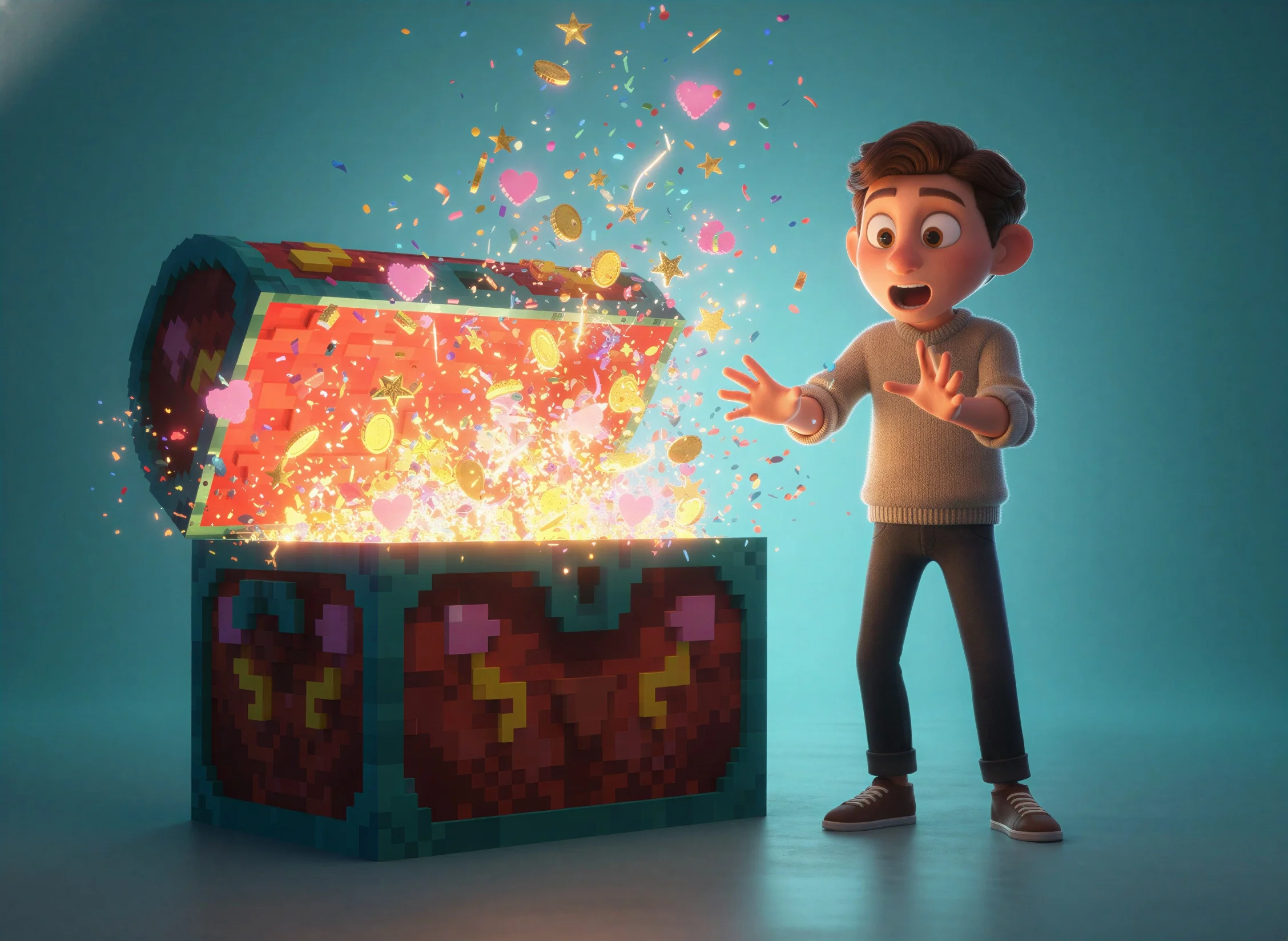
Create dynamic visual effects for feedback, rewards, and storytelling moments
Ever wanted to add some visual punch to your e-learning courses? Maybe stars bursting when a learner gets an answer right, coins flying for a gamified reward, or hearts floating during a Valentine's-themed module?
Most developers reach for GIFs or video overlays—but those are static, hard to customize, and add file bloat. What if you could trigger dynamic particle effects on demand, from anywhere on the slide, with full control over the physics?
That's exactly what this particle system does.
What We're Building
A lightweight JavaScript particle system that lets you:
Trigger bursts from any position on the slide (using percentages, so it works at any screen size)
Choose from built-in shapes: stars, hearts, coins, dollars, checkmarks, or confetti
Control how many particles, how wide they spread, and how high they shoot
Customize colors to match your brand
Use your own custom images if you want
One line of code fires the effect:
particle.burst('stars', 50, 50)
Creative Uses
This isn't just for celebrations. Think about:
Correct answer feedback — Checkmarks burst from the submit button
Gamification — Coins explode when learners earn points
Thematic moments — Hearts for relationship training, dollars for financial literacy, stars for achievements
Attention grabbers — Draw focus to a specific area of the slide
Storytelling — Visual punctuation for key moments
The effect is immediate, satisfying, and way more engaging than a static "Correct!" message.
Setup
The setup is simple—one JavaScript trigger on your first slide.
Step 1: Add the Script
On your first slide, add a trigger:
Action: Execute JavaScript
When: Timeline starts
Paste the entire particle system script into that trigger
That's it. The system initializes itself and waits for you to call it.
Step 2: Trigger a Burst
Now you can fire particle bursts from any trigger in your course. Add a JavaScript trigger to a button, a correct answer layer, a timeline cue point—anywhere.
particle.burst('stars')
This fires 50 stars from the center of the slide with default physics.
The Burst Command
The full signature gives you control over everything:
particle.burst(TYPE, X%, Y%, COUNT, RADIUS, HEIGHT)
Parameter | Default | What it does |
|---|---|---|
TYPE |
| Shape of particles |
X% |
| Horizontal position (0 = left, 100 = right) |
Y% |
| Vertical position (0 = top, 100 = bottom) |
COUNT |
| Number of particles |
RADIUS |
| How wide they spread |
HEIGHT |
| How high they shoot |
Particle Types
Type | Description |
|---|---|
| Colorful paper strips |
| Gold stars |
| Hearts |
| Dollar bills |
| Gold coins |
| Checkmarks |
Examples
Here's where it gets fun. Let's look at some real scenarios.
Correct Answer Celebration
When the learner submits a correct answer, burst checkmarks from the submit button (let's say it's at 80% across, 90% down):
particle.burst('check', 80, 90, 30)
Earning Points
Coins exploding from a score counter in the top-right:
particle.burst('coins', 90, 10, 40, 20, 25)
The extra parameters widen the spread and increase the height for a more dramatic effect.
Big Celebration
Learner completes a module? Go big:
particle.burst('confetti', 25, 50, 80, 30, 20)
particle.burst('confetti', 75, 50, 80, 30, 20)
particle.burst('stars', 50, 50, 50, 25, 25)
Three bursts—confetti from the left and right, stars from the center.
Subtle Feedback
Sometimes you want something small and focused:
particle.burst('stars', 50, 50, 15, 5, 10)
Just 15 stars, tight spread, low height. A little sparkle, not a fireworks show.
Customization
At the top of the script, you'll find PARTICLE_SETTINGS. This is where you dial in your defaults and brand colors:
var PARTICLE_SETTINGS = {
  particleCount: 50,        // Default count
  particleSize: 1,          // Size multiplier
  burstPower: 18,           // Default height
  spread: 14,               // Default radius
  gravity: 0.35,            // Fall speed (lower = floatier)

  starColor: '#FFD700',     // Gold
  heartColor: '#ff4d6d',    // Pink-red
  checkColor: '#4ecca3',    // Green
  coinColor: '#FFD700',     // Gold
  coinBorder: '#DAA520',    // Darker gold
  dollarColor: '#85bb65',   // Money green
  dollarText: '#2d5016',    // Dark green

  confettiColors: ['#ff6b6b','#4ecdc4','#ffe66d','#95e1d3','#f38181','#aa96da','#fcbad3'],

  customImageUrl: ''        // Your own image
};
Want purple stars? Change starColor. Want floatier confetti? Lower the gravity. Want to use your company logo as the particle? Set customImageUrl to the image path.
Position Cheat Sheet
Since everything is percentage-based, here's a quick reference:
Location | X | Y |
|---|---|---|
Center | 50 | 50 |
Top-left | 0 | 0 |
Top-center | 50 | 0 |
Top-right | 100 | 0 |
Bottom-center | 50 | 100 |
Bottom-right | 100 | 100 |
The percentages are relative to the .slide-container, so they work correctly regardless of browser size or Storyline's scaling.
Clearing Particles
Need to stop the effect immediately? Maybe on slide exit or a reset button:
particle.clear()
This removes all active particles from the screen.
Bonus: Hook It Up to a Slider
Want particles to react to learner input in real-time? You can tie the particle system to a Storyline slider variable. As the learner drags the slider, particles burst continuously—more particles as the value increases.
Add this to a trigger that fires while the slider is being dragged:
var sliderValue = player.GetVar("Slider1");
var count = Math.round(sliderValue * 5);
particle.burst('coins', 50, 30, count, 10, 10);
This grabs the slider value, scales it to a particle count, and fires a burst. Drag the slider higher, more coins fly. Keep the count and physics low since it's firing continuously—you don't want to overwhelm the screen.
Swap 'coins' for 'dollars', 'stars', or whatever fits your theme.
The Code
Here's the complete particle system. Copy the entire thing into your first slide's JavaScript trigger.
/**
 * STORYLINE PARTICLE SYSTEM
 * Usage: particle.burst(TYPE, X%, Y%, COUNT, RADIUS, HEIGHT)
 */

var PARTICLE_SETTINGS = {
  particleCount: 50,
  particleSize: 1,
  burstPower: 18,
  spread: 14,
  gravity: 0.35,

  starColor: '#FFD700',
  heartColor: '#ff4d6d',
  checkColor: '#4ecca3',
  coinColor: '#FFD700',
  coinBorder: '#DAA520',
  dollarColor: '#85bb65',
  dollarText: '#2d5016',

  confettiColors: ['#ff6b6b','#4ecdc4','#ffe66d','#95e1d3','#f38181','#aa96da','#fcbad3'],

  customImageUrl: ''
};

var particle = (function() {
  var canvas, ctx, particles = [], animationId = null, isInitialized = false;

  function svgToDataUri(svgString) {
    return 'data:image/svg+xml;base64,' + btoa(svgString);
  }

  function getStarSvg() {
    var color = PARTICLE_SETTINGS.starColor;
    return svgToDataUri('<svg xmlns="http://www.w3.org/2000/svg" width="32" height="32" viewBox="0 0 32 32"><polygon fill="' + color + '" points="16,0 20,12 32,12 22,19 26,32 16,24 6,32 10,19 0,12 12,12"/></svg>');
  }

  function getDollarSvg() {
    var bg = PARTICLE_SETTINGS.dollarColor;
    var text = PARTICLE_SETTINGS.dollarText;
    return svgToDataUri('<svg xmlns="http://www.w3.org/2000/svg" width="40" height="20" viewBox="0 0 40 20"><rect fill="' + bg + '" width="40" height="20" rx="2"/><text x="20" y="14" text-anchor="middle" font-size="12" font-weight="bold" fill="' + text + '">lt;/text></svg>');
  }

  function getHeartSvg() {
    var color = PARTICLE_SETTINGS.heartColor;
    return svgToDataUri('<svg xmlns="http://www.w3.org/2000/svg" width="32" height="32" viewBox="0 0 32 32"><path fill="' + color + '" d="M16 28s-11-7.2-11-15c0-4.4 3.6-8 8-8 2.6 0 5 1.3 6.5 3.4C21 6.3 23.4 5 26 5c4.4 0 8 3.6 8 8 0 7.8-11 15-11 15z"/></svg>');
  }

  function getConfettiSvg(color, rotation) {
    return svgToDataUri('<svg xmlns="http://www.w3.org/2000/svg" width="20" height="20" viewBox="0 0 20 20"><rect fill="' + color + '" width="20" height="8" rx="1" transform="rotate(' + rotation + ' 10 10)"/></svg>');
  }

  function getCheckSvg() {
    var color = PARTICLE_SETTINGS.checkColor;
    return svgToDataUri('<svg xmlns="http://www.w3.org/2000/svg" width="32" height="32" viewBox="0 0 32 32"><circle fill="' + color + '" cx="16" cy="16" r="14"/><path fill="white" d="M13 21l-5-5 2-2 3 3 7-7 2 2z"/></svg>');
  }

  function getCoinSvg() {
    var color = PARTICLE_SETTINGS.coinColor;
    var border = PARTICLE_SETTINGS.coinBorder;
    return svgToDataUri('<svg xmlns="http://www.w3.org/2000/svg" width="32" height="32" viewBox="0 0 32 32"><circle fill="' + color + '" cx="16" cy="16" r="14" stroke="' + border + '" stroke-width="2"/><text x="16" y="21" text-anchor="middle" font-size="14" font-weight="bold" fill="' + border + '">lt;/text></svg>');
  }

  function Particle(x, y, image, radius, height) {
    this.x = x;
    this.y = y;
    this.image = image;
    this.width = image.width || 32;
    this.height = image.height || 32;

    var spread = radius || PARTICLE_SETTINGS.spread;
    var power = height || PARTICLE_SETTINGS.burstPower;

    this.vx = (Math.random() - 0.5) * spread;
    this.vy = Math.random() * -power - (power * 0.4);
    this.gravity = PARTICLE_SETTINGS.gravity;
    this.friction = 0.99;
    this.rotation = Math.random() * Math.PI * 2;
    this.rotationSpeed = (Math.random() - 0.5) * 0.3;

    var size = PARTICLE_SETTINGS.particleSize;
    this.scale = (0.5 + Math.random() * 0.5) * size;
    this.opacity = 1;
    this.fadeSpeed = 0.008 + Math.random() * 0.008;
    this.wobble = Math.random() * Math.PI * 2;
    this.wobbleSpeed = 0.1 + Math.random() * 0.1;
  }

  Particle.prototype.update = function() {
    this.vy += this.gravity;
    this.vx *= this.friction;
    this.wobble += this.wobbleSpeed;
    this.x += this.vx + Math.sin(this.wobble) * 0.8;
    this.y += this.vy;
    this.rotation += this.rotationSpeed;
    if (this.y > canvas.height * 0.75) {
      this.opacity -= this.fadeSpeed * 3;
    }
    return this.opacity > 0 && this.y < canvas.height + 50;
  };

  Particle.prototype.draw = function() {
    ctx.save();
    ctx.globalAlpha = this.opacity;
    ctx.translate(this.x, this.y);
    ctx.rotate(this.rotation);
    ctx.scale(this.scale, this.scale);
    ctx.drawImage(this.image, -this.width / 2, -this.height / 2, this.width, this.height);
    ctx.restore();
  };

  function loadImage(src) {
    return new Promise(function(resolve, reject) {
      var img = new Image();
      img.onload = function() { resolve(img); };
      img.onerror = reject;
      img.src = src;
    });
  }

  function resize() {
    if (!canvas) return;
    var container = document.querySelector('.slide-container');
    if (!container) return;
    canvas.width = container.offsetWidth;
    canvas.height = container.offsetHeight;
    canvas.style.left = '0px';
    canvas.style.top = '0px';
    canvas.style.width = container.offsetWidth + 'px';
    canvas.style.height = container.offsetHeight + 'px';
  }

  function animate() {
    ctx.clearRect(0, 0, canvas.width, canvas.height);
    particles = particles.filter(function(p) {
      var alive = p.update();
      if (alive) p.draw();
      return alive;
    });
    if (particles.length > 0) {
      animationId = requestAnimationFrame(animate);
    } else {
      animationId = null;
    }
  }

  function init() {
    if (isInitialized) return;
    canvas = document.createElement('canvas');
    canvas.id = 'particle-canvas';
    canvas.style.cssText = 'position:absolute;pointer-events:none;z-index:9999;';
    var container = document.querySelector('.slide-container');
    if (container) {
      container.appendChild(canvas);
    } else {
      document.body.appendChild(canvas);
    }
    ctx = canvas.getContext('2d');
    resize();
    window.addEventListener('resize', resize);
    isInitialized = true;
  }

  function burst(type, xPercent, yPercent, count, radius, height) {
    if (!isInitialized) init();
    type = type || 'confetti';
    xPercent = xPercent !== undefined ? xPercent : 50;
    yPercent = yPercent !== undefined ? yPercent : 50;
    count = count !== undefined ? count : PARTICLE_SETTINGS.particleCount;
    radius = radius !== undefined ? radius : PARTICLE_SETTINGS.spread;
    height = height !== undefined ? height : PARTICLE_SETTINGS.burstPower;

    var originX = (xPercent / 100) * canvas.width;
    var originY = (yPercent / 100) * canvas.height;
    var useCustomImage = PARTICLE_SETTINGS.customImageUrl && PARTICLE_SETTINGS.customImageUrl !== '';

    for (var i = 0; i < count; i++) {
      (function() {
        var src;
        if (useCustomImage) {
          src = PARTICLE_SETTINGS.customImageUrl;
        } else {
          switch(type) {
            case 'stars': case 'star': src = getStarSvg(); break;
            case 'dollars': case 'dollar': case 'money': src = getDollarSvg(); break;
            case 'hearts': case 'heart': src = getHeartSvg(); break;
            case 'check': case 'checkmark': case 'correct': src = getCheckSvg(); break;
            case 'coins': case 'coin': src = getCoinSvg(); break;
            default:
              var colors = PARTICLE_SETTINGS.confettiColors;
              var color = colors[Math.floor(Math.random() * colors.length)];
              var rotation = Math.floor(Math.random() * 360);
              src = getConfettiSvg(color, rotation);
          }
        }
        loadImage(src).then(function(img) {
          var p = new Particle(
            originX + (Math.random() - 0.5) * 80,
            originY + (Math.random() - 0.5) * 40,
            img, radius, height
          );
          particles.push(p);
          if (!animationId) animate();
        });
      })();
    }
  }

  function clear() {
    particles = [];
    if (ctx && canvas) ctx.clearRect(0, 0, canvas.width, canvas.height);
  }

  return { burst: burst, clear: clear };
})();

window.particle = particle;
Wrapping Up
A particle system might seem like a small thing, but it's the kind of detail that makes learners feel something. A burst of stars when they get an answer right is infinitely more satisfying than a text box that says "Correct."
The best part? It's one script, one line to trigger, and endless creative possibilities.
Drop it in your next project and see how it feels.
Questions or ideas for other particle types? Let me know—I'd love to hear how you're using this.