Replacing the Next Button Arrow with a Lock Icon when disabled in Articulate Storyline
By Nathan Stoker · September 17, 2024 · 6 min read
Understanding the Need
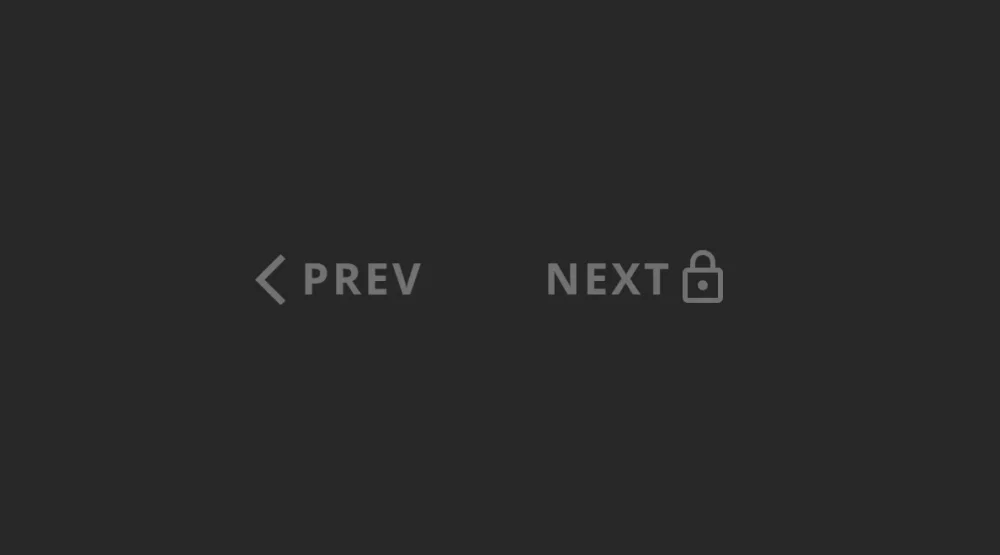
Consider a typical eLearning course with a series of knowledge checks or interactive slides. The "Next" button is a vital navigation tool, leading learners through the content. However, there might be situations where this button needs to be temporarily disabled. Perhaps a learner hasn't completed a required action, or certain conditions haven't been met. While simply graying out the button is functional, it can leave learners wondering why they can't proceed. A more elegant solution involves incorporating a visual cue, such as changing the button's icon, to clearly indicate its disabled state.
A JavaScript Solution
Today, we'll explore a JavaScript snippet that seamlessly integrates into your Articulate Storyline projects, enabling you to dynamically change the icon on a "Next" button based on its enabled/disabled state. This enhancement provides clear feedback to the learner, preventing confusion and frustration.
 (function() {
    try {
        console.log("SVG Mask Script starting execution");

        // Flag to ensure the script runs only once
        let scriptInitialized = false;

        function getIconSvgFromAccText(accText) {
            console.log(`Searching for icon with acc-text: "${accText}"`);
            const container = document.querySelector(`[data-acc-text="${accText}"]`);
            if (!container) {
                console.error(`Element with data-acc-text '${accText}' not found.`);
                return null;
            }
            console.log(`Found container for acc-text: "${accText}"`, container);

            // Try to find SVG content
            const svgElement = container.querySelector('svg');
            if (svgElement) {
                console.log(`Found SVG element for acc-text: "${accText}"`, svgElement);
                console.log('SVG innerHTML:', svgElement.innerHTML);

                // Clone the SVG to avoid modifying the original
                const clonedSvg = svgElement.cloneNode(true);

                // Ensure the SVG has the correct size
                clonedSvg.setAttribute('width', '18');
                clonedSvg.setAttribute('height', '18');

                // Find all <use> elements
                const useElements = clonedSvg.querySelectorAll('use');
                for (const useElement of useElements) {
                    const href = useElement.getAttribute('href');
                    if (href && href.startsWith('#')) {
                        const targetId = href.slice(1);
                        const targetElement = document.getElementById(targetId);
                        if (targetElement) {
                            // Replace the <use> element with the actual content
                            useElement.outerHTML = targetElement.outerHTML;
                        }
                    }
                }

                // Convert SVG to a data URL
                const svgString = new XMLSerializer().serializeToString(clonedSvg);
                console.log('Serialized SVG string:', svgString);

                const dataUrl = `data:image/svg+xml;base64,${btoa(svgString)}`;
                console.log('Created data URL for SVG:', dataUrl);

                return dataUrl;
            }

            console.error(`No suitable SVG found for acc-text: "${accText}"`);
            return null;
        }

        // Function to initialize the button
        function initializeButton(button, lockedIconAccText) {
            console.log(`Initializing button with locked icon acc-text: "${lockedIconAccText}"`);
            const viewContent = button.querySelector(".view-content");
            if (!viewContent) {
                console.error("Could not find .view-content within the button");
                return;
            }
            console.log("Found .view-content", viewContent);

            const textSpan = viewContent.querySelector("[data-ref='label']");
            const iconSpan = viewContent.querySelector(".btn-icon");

            if (!textSpan) console.warn("Could not find [data-ref='label'] within .view-content");
            if (!iconSpan) console.warn("Could not find .btn-icon within .view-content");

            console.log("Text span:", textSpan);
            console.log("Icon span:", iconSpan);

            // Apply styles to the button
            button.style.display = "flex";
            button.style.alignItems = "center";
            button.style.justifyContent = "center";
            button.style.gap = "2px";

            // Reset any existing margins or paddings
            viewContent.style.margin = "0";
            viewContent.style.padding = "0";
            if (textSpan) {
                textSpan.style.margin = "0";
                textSpan.style.padding = "0";
            }

            // Style the icon container
            if (iconSpan) {
                iconSpan.style.display = "flex";
                iconSpan.style.alignItems = "center";
                iconSpan.style.justifyContent = "center";
                iconSpan.style.width = "18px";
                iconSpan.style.height = "18px";
                iconSpan.style.flexShrink = "0";
                iconSpan.style.margin = "0";
                iconSpan.style.padding = "0";
            }

            // Function to toggle the lock/arrow icon based on the button state
            function toggleButtonIcon() {
                console.log("Toggling button icon");
                console.log("Button classList:", button.classList);
                if (button.classList.contains("cs-disabled")) {
                    console.log("Button is disabled. Applying custom lock icon.");
                    const lockedSvgDataUrl = getIconSvgFromAccText(lockedIconAccText);
                    if (lockedSvgDataUrl) {
                        console.log("Successfully retrieved locked icon SVG data URL");
                        if (iconSpan) {
                            iconSpan.innerHTML = ''; // Clear existing content
                            iconSpan.style.width = '18px';
                            iconSpan.style.height = '18px';
                            iconSpan.style.backgroundColor = 'rgba(186, 187, 186, 1)'; // Set the color you want
                            iconSpan.style.webkitMask = `url("${lockedSvgDataUrl}") no-repeat center / contain`;
                            iconSpan.style.mask = `url("${lockedSvgDataUrl}") no-repeat center / contain`;
                            console.log("Applied mask to icon span");
                        } else {
                            console.error("Icon span not found, cannot apply mask");
                        }
                    } else {
                        console.error("Failed to retrieve locked icon SVG data URL");
                    }
                } else {
                    console.log("Button is enabled. Restoring original arrow icon.");
                    if (iconSpan) {
                        iconSpan.style.backgroundColor = ''; // Reset background color
                        iconSpan.style.webkitMask = ''; // Reset mask
                        iconSpan.style.mask = ''; // Reset mask
                        iconSpan.innerHTML = `
                            <svg class="cs-icon next-icon" width="10" height="18" viewBox="0 -1 10 18" focusable="false">
                                <path transform="rotate(180, 5, 8)" d="M2.81685219,7.60265083 L9.00528946,1.41421356 L7.5910759,-1.27897692e-13 L1.55431223e-13,7.5910759 L0.0115749356,7.60265083 L1.55431223e-13,7.61422577 L7.5910759,15.2053017 L9.00528946,13.7910881 L2.81685219,7.60265083 Z" stroke="none" fill-rule="evenodd"></path>
                            </svg>`;
                    } else {
                        console.error("Icon span not found, cannot restore original icon");
                    }
                }
            }

            // Initialize the icon for the button
            toggleButtonIcon();

            // Set up a MutationObserver to watch for changes to the classList of the button
            const observer = new MutationObserver(function(mutations) {
                mutations.forEach(function(mutation) {
                    if (mutation.type === "attributes" && mutation.attributeName === "class") {
                        console.log("Button class changed. Checking button state...");
                        toggleButtonIcon();
                    }
                });
            });

            // Start observing the button for class changes
            observer.observe(button, {
                attributes: true,
                attributeFilter: ['class']
            });
        }

        // Main script execution
        function initializeNextLockScript(options = {}) {
            console.log("Initializing Next Lock Script");
            if (scriptInitialized) {
                console.log("Script already initialized. Skipping initialization.");
                return;
            }

            const defaultOptions = {
                lockedIconAccText: "Custom Locked Icon"
            };

            const { lockedIconAccText } = { ...defaultOptions, ...options };

            // Check if Next or Submit button exists
            const nextButton = document.querySelector("#next");
            const submitButton = document.querySelector("#submit");

            console.log("Next button:", nextButton);
            console.log("Submit button:", submitButton);

            // Check if the buttons exist and are visible
            const isButtonVisible = (button) => {
                if (!button) return false;
                const style = window.getComputedStyle(button);
                return style.display !== "none" && style.visibility !== "hidden";
            };

            if (isButtonVisible(nextButton)) {
                console.log("Next button is visible, initializing...");
                initializeButton(nextButton, lockedIconAccText);
            } else {
                console.log("Next button is not visible or doesn't exist");
            }

            if (isButtonVisible(submitButton)) {
                console.log("Submit button is visible, initializing...");
                initializeButton(submitButton, lockedIconAccText);
            } else {
                console.log("Submit button is not visible or doesn't exist");
            }

            if (!isButtonVisible(nextButton) && !isButtonVisible(submitButton)) {
                console.log("No visible Next or Submit button found. Exiting script.");
                return;
            }

            // Set the flag to prevent re-initialization
            scriptInitialized = true;
            console.log("Script initialization complete");
        }

        // MutationObserver to monitor DOM changes
        const observer = new MutationObserver(() => {
            const nextButton = document.querySelector("#next");
            const submitButton = document.querySelector("#submit");

            if (nextButton || submitButton) {
                initializeNextLockScript({
                    lockedIconAccText: "Custom Locked Icon"
                });
                observer.disconnect(); // Stop observing once the buttons are found and initialized
            }
        });

        // Start observing the document for any changes in child elements
        observer.observe(document.body, {
            childList: true,
            subtree: true
        });

        console.log("SVG Mask Script finished execution");
    } catch (error) {
        console.error("An error occurred in the SVG Mask Script:", error);
    }
})();
Understanding the code
First Things First: Have We Been Here Before?
We kick things off with a little check. We're basically asking, "Hey, has this code already run once?" This is important because we don't want to accidentally do things twice and mess up our button.
Next Up: Finding Our Target
Now it's time to find the "Next" button we want to work on. We use some fancy JavaScript to locate it on the page.
Style It Up!
Once we've got our button in our sights, we start giving it a makeover. We apply some CSS styles to make it look just right. We're talking about things like its layout, spacing, and making sure everything lines up nicely when we toggle.
The Icon Transformation
Now, let's get to the exciting part – where we add some visual flair to our "Next" button. We've got a special function called toggleNextButtonIcon that's responsible for dynamically swapping out the icon. It works like a clever little switch:
Disabled State: When the "Next" button is disabled (meaning it's not clickable), we replace the standard arrow icon with a visual cue that signifies it's currently unavailable. In our code, we've chosen a lock icon to represent this state.
Enabled State: As soon as the button becomes enabled again, the original arrow icon magically reappears, inviting the user to click and proceed.
Personalize Your Icon
Want to get creative? You can easily customize the disabled icon to match your course's aesthetic. Here's how:
Explore the Google Material Icon library or make your own: Head over to the Google Material Icon library and browse their extensive collection of icons or save an SVG in Adobe Illustrator.
Choose your replacement: Find or create an icon that visually communicates the "disabled" or "unavailable" state. It could be a "block" symbol, a "pause" icon, or anything that resonates with your design.
Paste it in Storyline off the stage: Right click on the icon, give it an Accessibility Alt Text of "Custom Locked Icon".
Important Note: Remember that the icon space is limited to 18x18 pixels. So, if your chosen icon looks too cramped or unclear at that size, consider opting for a simpler one.
The Mutation Observer: Our On-the-Fly Icon Changer
Now, this part might sound a bit sci-fi, but it's actually pretty cool. We set up something called a "Mutation Observer". Think of it like a super-attentive guard. It constantly watches the "Next" button, waiting for any changes to its status. The moment the button's status changes (like from disabled to enabled), the observer springs into action and calls our icon-changing function. This ensures the icon is always accurate, even if the button's state changes dynamically.
Sadly, all this awesome button magic might not work on mobile devices yet. But, I'm working on it!
Integration and Impact
By seamlessly integrating this code into your Articulate Storyline project, you introduce a subtle yet powerful enhancement that significantly benefits your learners. The dynamic icon change serves as an intuitive visual cue, preventing confusion and frustration when navigating through your course. It reinforces the button's state, aiding learners who rely on screen readers or other assistive technologies. Moreover, the clean and well-structured code promotes maintainability, making it easier to adapt and customize for future projects.
Conclusion
This seemingly minor enhancement can have a profound impact on the overall effectiveness of your eLearning interactions. It exemplifies how JavaScript can be leveraged within Articulate Storyline to craft responsive and user-friendly interfaces. Remember, paying close attention to such details contributes to a more polished and engaging learning experience for your audience.