Create an Animated Walking Character in Articulate Storyline And use JavaScript to make it move - Part 1
By Nathan Stoker · June 5, 2025 · 12 min read
How to Create an Animated Walking Character in Articulate Storyline
Complete Step-by-Step Tutorial
Learn how to build a smooth, keyboard-controlled animated character using PNG frames, JavaScript, and Storyline's built-in features. This comprehensive guide covers everything from preparing sprite frames to implementing movement logic.
Once you have done this tutorial, head over to Part 2.
What You'll Build
By the end of this tutorial, you'll have:
• A character that walks smoothly when you press the arrow keys
• Proper animations that don't jitter or jump around
• Speed that gradually increases the longer you hold a key
• Different character states for walking left, walking right, and standing still
• Professional-looking animations suitable for e-learning courses
Why This Animation Approach Works
• No jittery movement – We align every frame perfectly to prevent sliding
• Smooth animations – APNG format keeps transparency and timing intact
• Easy to manage – Storyline handles visual states while JavaScript handles movement
• Professional feel – GSAP library makes everything buttery smooth
• Reusable – Once set up, you can easily swap in different character sprites
What You Need Before Starting
• Basic knowledge of Articulate Storyline (creating states, adding images, setting up triggers)
• Character sprite frames (we'll show you where to get free ones)
• A tool to create animated PNGs (free options available)
• The GSAP animation library (already included in modern Storyline versions)
Free Character Sprites
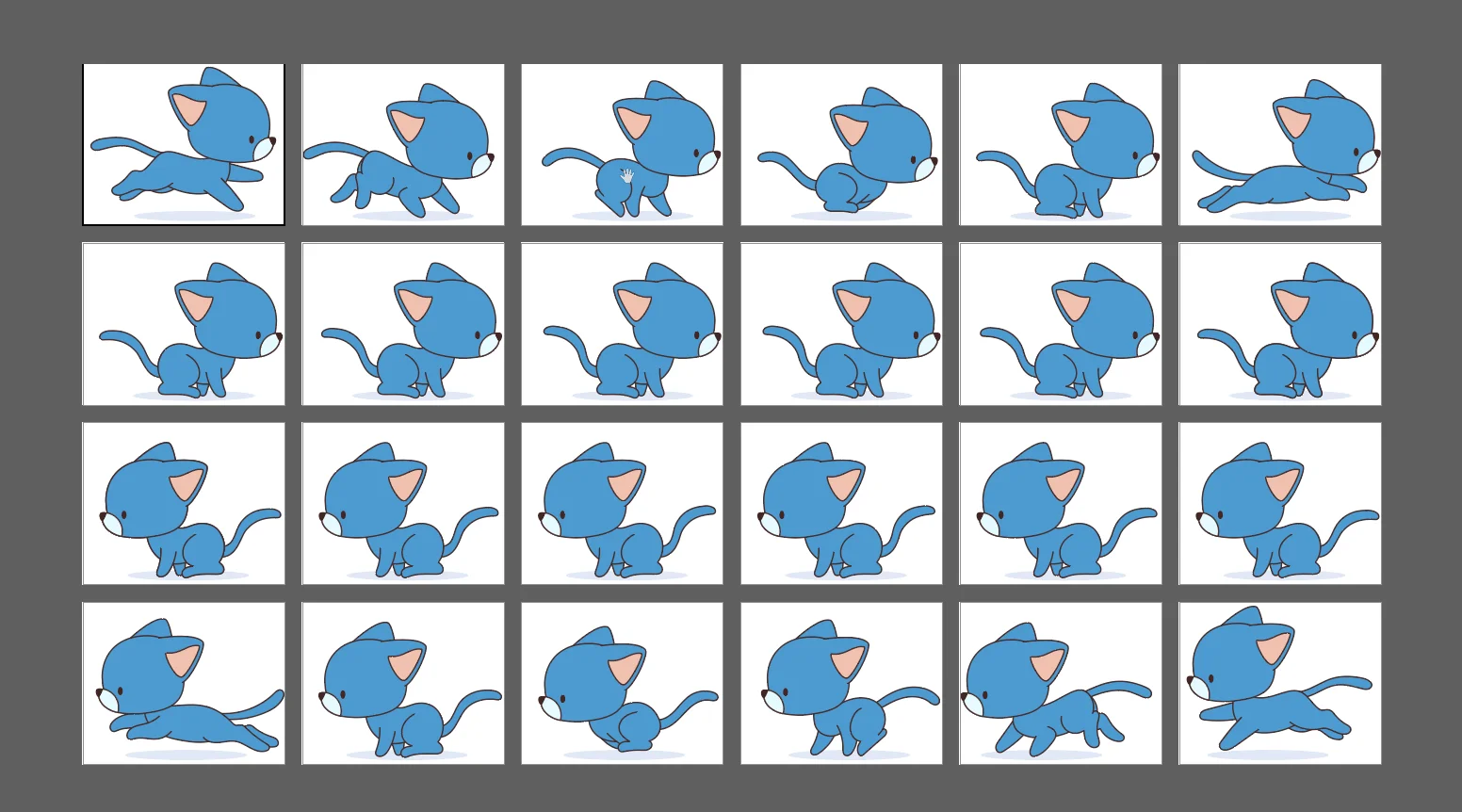
For this tutorial, we'll use a free cat character sprite. You can download it from:
Hand-drawn Animation Frames Collection on Freepik
This collection includes six walking frames that we'll use to create our animated character.
Step 1: Prepare Your Character Sprite Frames
Download and Organize Your Files
1. Download the character sprite collection from the Freepik link or use your own six PNG files showing different walking poses
2. Create a dedicated folder called "block-cycle" and extract all six images inside
3. Rename the files consistently – Use names like walk-right-01.png through walk-right-06.png
4. Identify the longest frame – Look through all six frames and find the one that extends furthest (usually frame 6)
Align Every Frame Perfectly (Critical Step)
This is the most important step for smooth animation. If your frames aren't perfectly aligned, your character will appear to slide or jitter during movement.
1. Open your graphics editor (Photoshop, Illustrator, GIMP, etc.) and load all six character frames
2. Start with the longest frame – This is usually frame 6, which often has the most extended leg pose
3. Center this frame in your workspace as your reference point
4. Enable the shadow layer – Most sprite collections include a shadow beneath the character. Use this as your alignment guide
5. Zoom in closely (Ctrl+Y in most editors) to see individual pixels clearly
6. Identify your reference point – Look for a consistent spot like the shadow, foot position, or a marking on the character
7. Align each remaining frame – Open frames 1-5 and drag each so the reference point snaps to exactly the same position
8. Remove the shadow layer once all frames are aligned
9. Verify consistent dimensions – All frames must be exactly the same width (e.g., 240px)
Pro Tip: If one frame exports at 239px while others are 240px, your entire animation will jitter. Always double-check dimensions before proceeding.
Step 2: Create Your APNG Animation
Export Individual PNG Frames
1. Use your editor's batch export feature (File → Export → Export for Screens in Adobe products)
2. Select all six aligned frames
3. Set the width to exactly 240px (or whatever consistent size you chose)
4. Export to your "block-cycle" folder
5. Name them sequentially: walk-right-01.png through walk-right-06.png
6. Verify dimensions – Right-click each PNG and confirm they're all exactly 240px wide
Download and Use APNG Assembler
For creating our animated PNG, we'll use a free, reliable tool:
Download APNG Assembler from SourceForge
This tool converts your individual PNG frames into a single animated PNG file that maintains transparency and smooth playback.
Assemble Your Walking Animation
1. Launch APNG Assembler after installation
2. Add your six PNGs in order (01 through 06) – the sequence is crucial for proper animation flow
3. Set frame timing: Select "Delay all frames" and set to 2/24 seconds per frame (or 1/12) for smooth, natural walking speed
4. Export your APNG: Choose your "block-cycle" folder and name it something like "walk-right-block.png"
5. Test the animation – Drag the APNG into a browser tab to verify it loops smoothly without jumping
Step 3: Set Up Storyline Character States
Create the Character Container Object
1. Open your Storyline project and navigate to your target slide
2. Insert a shape (Insert → Shapes → Rectangle) – this will be your character container
3. Position the rectangle where you want your character to appear on screen
4. Rename the object in the Selection Pane to "Character" (we'll need this name later)
5. Add a temporary text box inside the rectangle that says "Character State" so you can see its position
6. Delete the text box once you've positioned the container correctly
Positioning Tip: Don't worry about perfect horizontal centering – the JavaScript will handle final positioning. Focus on getting the vertical position right.
Set Up the Character State Variable
Before adding character images, create the variable that will control state changes:
1. Open the Variables panel (usually in the bottom-right)
2. Create a new variable:
Name: characterState (exactly as shown – case sensitive)
Type: Text
Default value: Leave blank
3. Click OK to save the variable
Import Character Images as States
1. Select your "Character" rectangle
2. Go to Format → States → Edit States in the ribbon
3. Click "Insert Pictures as States" (this imports multiple images as different states)
4. Select your character images: idle-right, idle-left, walk-right, walk-left
5. Click "Done" to finish creating states
Step 4: Configure State-Change Triggers
These triggers are what make your character animation work. They listen for changes to your characterState variable and automatically switch the visual appearance.
Create the Four State-Change Triggers
Set up four individual triggers—one per character state. Each trigger listens for a variable change and updates the character’s visual state accordingly.
Trigger | Action | When | Condition |
|---|---|---|---|
Walking Right | Change state to WalkRight | Variable changes |
|
Walking Left | Change state to WalkLeft | Variable changes |
|
Idle Right | Change state to IdleRight | Variable changes |
|
Idle Left | Change state to IdleLeft | Variable changes |
|
Each trigger ensures the character immediately reflects the current value of the characterState variable.
Important Trigger Setup Notes
• Trigger Location: Make sure these triggers are at the slide level, not attached to specific objects
• Exact Naming: The condition values ("WalkRight", "IdleRight", etc.) must match exactly what the JavaScript will send
• Variable Name: Ensure all triggers reference the same variable: "characterState"
Testing Tip: After setting up triggers, you can test them by manually changing the characterState variable value in Storyline's preview mode to see if states switch correctly.
Step 5: Add the JavaScript for Character Movement
Get Your Character's Data-Model-ID
Storyline assigns a unique identifier to each object. To make our JavaScript work, we need to find your character's ID:
1. Right-click your "Character" object in Storyline
2. Look at the top of the context menu – you'll see the data-model-id displayed
3. Click the copy option next to the ID to copy it to your clipboard
4. Keep this ID handy – you'll paste it into the JavaScript code
How to Add the JavaScript
• Go to the Triggers panel in Storyline
• Create a new trigger:
Action: Execute JavaScript
When: Timeline starts on this slide
Script: Paste the complete code below
• Save and publish your project
The Complete JavaScript Code
Copy and paste this entire code block into the Execute JavaScript trigger:
 (function () {
  try {
    // ─── Constants for movement ───────────────────────────────────────
    const moveSpeedBase = 2;       // Starting pixels/frame
    const accelerationStep = 0.5;   // Increase in speed each step
    const maxSpeed = 15;           // Cap on pixels/frame
    // ─── State variables ────────────────────────────────────────────
    let currentSpeed = moveSpeedBase;
    let moveInterval = null;
    let lastDirection = 'right';
    let isMoving = false;
    // ─── Storyline Variable Name ────────────────────────────────────
    // (Must match exactly the Text variable you created in Storyline)
    const STATE_VAR_NAME = 'characterState';
    // ─── Data-model-id for the character sprite ─────────────────────
    // Replace '6TZmBakju4p' with your actual character object's data-model-id
    const MODEL_IDS = {
      character: '6TZmBakju4p'
    };
    // ─── Grab the character element from DOM ─────────────────────────
    const character = document.querySelector[data-model-id="${MODEL_IDS.character}"]);
    // ─── Dependency Checks ───────────────────────────────────────────
    if (!character) {
      console.error❌ Character element not found (data-model-id='${MODEL_IDS.character}').);
      return;
    }
    if (!window.gsap) {
      console.error("❌ GSAP library not found. Make sure GSAP is loaded before this script runs.");
      return;
    }
    // ─── Initial CSS Setup ───────────────────────────────────────────
    character.style.position = 'absolute';
    character.style.visibility = 'hidden';
    character.style.left = '50%'; // Temporary centering; final centering happens after layout stabilizes
    // ─── Find a valid "stage" container (ancestor with nonzero width) ──
    let container = character.parentElement;
    let stageContainer = null;
    let depth = 0;
    while (container && depth < 15) {
      if (container.offsetWidth > 0) {
        stageContainer = container;
        break;
      }
      container = container.parentElement;
      depth++;
    }
    if (!stageContainer) {
      console.error("❌ No valid stage container found.");
      return;
    }
    // ─── Function: Wait until Storyline's layout is ready ─────────────
    function waitForLayout(callback) {
      let tries = 0;
      function check() {
        if (character.offsetWidth > 0 && stageContainer.offsetWidth > 0) {
          // Optionally confirm that GetPlayer exists before invoking SetVar
          if (window.GetPlayer && typeof window.GetPlayer().SetVar === 'function') {
            callback();
          } else if (tries++ < 30) {
            setTimeout(check, 50);
          } else {
            console.error("❌ Storyline player never initialized. Proceeding anyway.");
            callback();
          }
        } else if (tries++ < 30) {
          setTimeout(check, 50);
        } else {
          console.error("❌ Layout never stabilized.");
        }
     }
    check();
    }
   // ─── After layout stabilizes, center character and initialize state ─
    waitForLayout(() => {
     const stageWidth = stageContainer.offsetWidth;
      const charWidth = character.offsetWidth;
      const centerX = stageWidth / 2 - charWidth / 2;
      // Center character horizontally and make it visible
      gsap.set(character, { left: centerX });
     character.style.visibility = 'visible';
     // Set initial Storyline variable: characterState = 'idleRight'
    if (window.GetPlayer && typeof window.GetPlayer().SetVar === 'function') {
        try {
         GetPlayer().SetVar(STATE_VAR_NAME, 'idleRight');
       } catch (err) {
          console.warn⚠️ Failed to set initial ${STATE_VAR_NAME}: ${err.message});
        }
    }
      // ─── Helper: get current left position of character (in px) ─────
      function getCharacterLeft() {
        return parseFloat(character.style.left || '0') || 0;
      }
      // ─── handleMove(direction): updates position & acceleration ─────
      function handleMove(direction) {
        const charLeft = getCharacterLeft();
        // If we just started moving or changed direction → update storyboard state
        if (!isMoving || direction !== lastDirection) {
          if (window.GetPlayer && typeof window.GetPlayer().SetVar === 'function') {
            try {
              const state = direction === 'left' ? 'walkLeft' : 'walkRight';
              GetPlayer().SetVar(STATE_VAR_NAME, state);
            } catch (err) {
              console.warn⚠️ Failed to set ${STATE_VAR_NAME} to ${direction}: ${err.message});
            }
          }
          lastDirection = direction;
          isMoving = true;
        }
        // Compute new left value
        const newCharLeft =
          direction === 'left'
            ? charLeft - currentSpeed
            : charLeft + currentSpeed;
        // Animate the character's left property over 0.05s (for smoothing)
        gsap.to(character, { duration: 0.05, left: newCharLeft, overwrite: true });
        // Increase speed (up to maxSpeed)
        currentSpeed = Math.min(maxSpeed, currentSpeed + accelerationStep);
      }
      // ─── stopMove(): clear interval, reset speed, switch to idle pose ──
      function stopMove() {
        if (moveInterval) {
          clearInterval(moveInterval);
          moveInterval = null;
          currentSpeed = moveSpeedBase;
          if (isMoving) {
            if (window.GetPlayer && typeof window.GetPlayer().SetVar === 'function') {
              try {
                const idleState = lastDirection === 'left' ? 'idleLeft' : 'idleRight';
                GetPlayer().SetVar(STATE_VAR_NAME, idleState);
              } catch (err) {
                console.warn⚠️ Failed to set idle ${STATE_VAR_NAME}: ${err.message});
              }
            }
            isMoving = false;
            lastDirection = lastDirection || 'right';
          }
        }
      }
      // ─── Keydown listener: start moveInterval on ← or → ───────────────
      document.addEventListener('keydown', function (e) {
        const key = e.key.toLowerCase();
        let direction = null;
        if (key === 'arrowleft') direction = 'left';
        if (key === 'arrowright') direction = 'right';
        if (direction && !moveInterval) {
          // Run handleMove(direction) every 20ms → smooth continuous movement
          moveInterval = setInterval(() => handleMove(direction), 20);
          e.preventDefault();
        }
      });
      // ─── Keyup listener: stop movement on key release ────────────────
      document.addEventListener('keyup', function (e) {
        const key = e.key.toLowerCase();
        if (key === 'arrowleft' || key === 'arrowright') {
          stopMove();
          e.preventDefault();
        }
      });
    });
  } catch (err) {
    console.error❌ Script failed during initialization: ${err.message});
    console.error(err.stack);
  }
})();
Key Customization Points
The JavaScript includes several settings you can easily adjust:
• moveSpeedBase = 2 – Starting movement speed (lower = slower start)
• accelerationStep = 0.5 – How quickly speed increases (lower = more gradual)
• maxSpeed = 15 – Maximum movement speed (higher = faster top speed)
• STATE_VAR_NAME – Must match your Storyline variable name exactly
• MODEL_IDS.character – Replace '6TZmBakju4p' with your actual data-model-id!
Step 6: Test and Troubleshoot
Quick Test Checklist
• Publish and open your slide in Chrome or Firefox
• Check the console (F12) for any error messages
• Verify the character appears centered on the slide in idle pose
• Press the right arrow – character should start walking right and speed up
• Release the key – character should stop and return to idle
• Try the left arrow – same behavior but facing left
Common Issues and Fixes
Character not appearing:
• Check that your data-model-id matches exactly
• Make sure GSAP is loaded before the script runs
• Verify your character container is visible on the slide
States not changing:
• Double-check that your variable is named "characterState" exactly
• Make sure all four state-change triggers are set up correctly
• Confirm your states are named IdleRight, IdleLeft, WalkRight, WalkLeft
Jerky animation:
• Verify all PNG frames are exactly the same width
• Check that your APNG loops smoothly when viewed alone
• Make sure frame alignment was done correctly
Keys not working:
• Ensure the slide has focus (click on it first)
• Check browser console for JavaScript errors
• Try refreshing the page
Final Checklist
Before showing your finished character to others, verify:
☐ All PNG frames are exactly the same width
☐ APNG loops smoothly when viewed alone
☐ Storyline variable "characterState" exists
☐ Four state-change triggers are set up correctly
☐ Data-model-id in JavaScript matches your character
☐ GSAP library is loaded before your script
☐ Character appears centered and responds to arrow keys
☐ States change properly (walking when moving, idle when stopped)
☐ No console errors appear in browser developer tools
What's Next?
Once you have this basic setup working, you can expand it with:
• Background scrolling that moves opposite to the character
• Jump and attack animations triggered by other keys
• Touch controls for mobile devices
• Multiple characters or interactive objects
• Collision detection with boundaries or obstacles
The foundation you've built here – combining Storyline's state management with JavaScript's movement logic – can support much more complex interactive experiences. Happy animating!