Build a Custom Drag Slider with Tooltips in Articulate Storyline Using JavaScript
By Nathan Stoker · October 18, 2026 · 10 min read
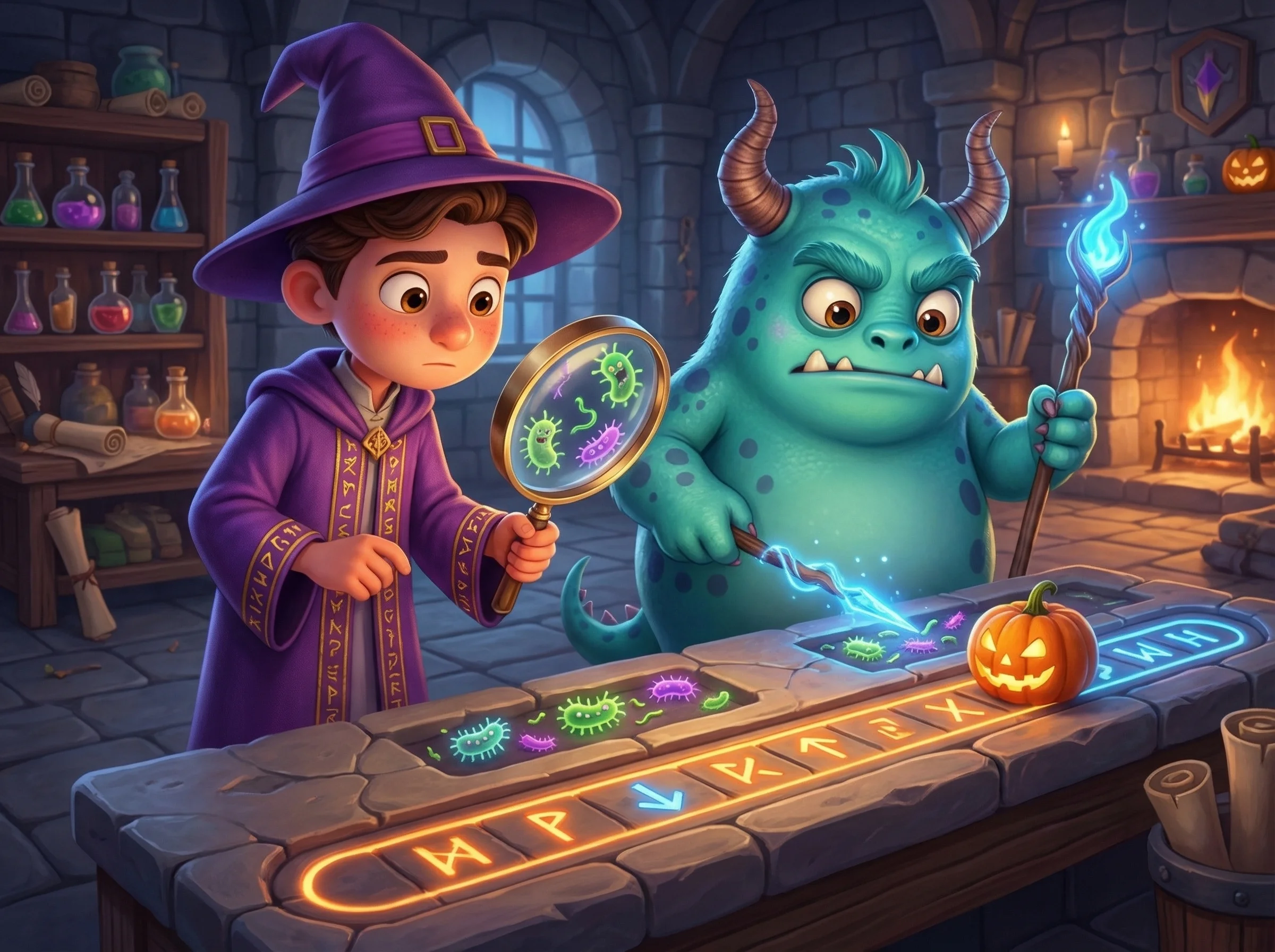
If you've ever tried to build an interactive slider in Articulate Storyline, you know the built-in options are limited. The default slider is functional, but it looks generic and doesn't offer much room for customization. What if you could use any Storyline shape as your draggable knob, snap it to specific positions along a track, and display dynamic tooltip labels that follow the knob as it moves?
That's exactly what this Storyline JavaScript slider tutorial delivers. You'll build a fully custom drag slider with snap points, GSAP-animated snapping, and floating tooltips, all driven by a single JavaScript trigger. It's the kind of polished interaction that makes learners stop and think, "Wait, this was built in Storyline?"
Let's break it down.
What You're Building
This interaction has two standout features working together:
A custom-shaped draggable slider. Instead of the default circle or square knob, this approach lets you use any Storyline shape (or group of shapes) as the draggable element. The knob has a "child" element, meaning you can attach a decorative graphic, icon, or illustration that moves with it. Want a magnifying glass sliding along a track? A pumpkin? A potion bottle? Whatever you design in Storyline becomes the slider handle.
Dynamic tooltips that follow the knob. As the knob snaps to each position, a styled tooltip appears above it with a custom label. The tooltip is built entirely in JavaScript (no Storyline text boxes involved), which means you have full control over fonts, colors, padding, and positioning. It even clamps to the slide edges so it never gets cut off.
The slider reports its current snap position back to Storyline through a numeric variable, so you can trigger layers, change states, or drive branching logic based on where the learner drags the knob.
How the Storyline Slide Is Set Up
Before touching the code, you need a few elements on your Storyline slide. Each one gets referenced by its data-model-id, which is the unique identifier Storyline assigns to every object when it publishes.
The Core Elements
You need three main objects:
The track (a horizontal line or rectangle that represents the slider path)
The knob (the draggable element, can be any shape)
The knob child (a visual element grouped or layered with the knob, like a decorative graphic)
You also need snap point markers, one for each position you want the slider to stop at. These can be small shapes, icons, or invisible rectangles placed along the track where you want snap behavior.
Finding Your data-model-id Values
To get the data-model-id for any element:
Publish your Storyline project (even a quick preview works)
Open the published output in a browser
Right-click the element and choose "Inspect"
Look for the
data-model-idattribute on the element's<div>tag
Each ID is a unique alphanumeric string like 5aiEYKSxqk6. You'll plug these into the config section of the code.
The Storyline Variable
Create a Number variable in Storyline called dragger_number (or whatever name you prefer). The JavaScript updates this variable every time the knob snaps to a new position. The value is a zero-based index: 0 for the starting position, 1 for the first snap point, 2 for the second, and so on.
Use this variable in Storyline triggers to show/hide layers, change object states, or control slide navigation based on the slider position.
Understanding the JavaScript: Key Concepts
You don't need to understand every line to use this code, but knowing what the major sections do will help you customize it confidently.
The Config Block
The top of the script is a clearly labeled configuration section. This is where you'll make most of your changes:
// ----------------------------------------------------------
// CONFIG
// ----------------------------------------------------------
var TRACK_ID       = '5aiEYKSxqk6';   // drag line
var KNOB_ID        = '66Io34fjnon';   // slider (draggable knob)
var KNOB_CHILD_ID  = '6awt9RVfCOC';   // slider child (mag/visual)

var SL_VAR         = 'dragger_number';
Replace each ID string with the data-model-id from your own Storyline project. The SL_VAR value should match the name of your Storyline variable exactly.
Snap Points and Labels
Two arrays define where the knob stops and what label appears:
var snapIds = [
  '5rVZj1KO7jG',
  '6XU5M7RLKQA',
  '6Np8gUlAmtv',
  '5qluBPxHn4K',
  '6aLq8Zgv7dI',
  '5oJtTD00UiU'
];

var snapLabels = [
  '',
  'Washing hands frequently',
  'Facility cleaning and disinfection',
  'Dungeon-wide infection control procedures',
  'Phantom barrier nursing (PPE and patient isolation)',
  'Early dark arts diagnostic testing',
  'Improving antibiotic alchemy'
];
The snapIds array contains the data-model-id of each snap marker on your slide. The snapLabels array contains the text displayed in the tooltip at each position. The first label is empty because index 0 represents the starting position (before the first marker).
To customize: replace the IDs with your own snap markers, and replace the label strings with your own text. Add or remove entries as needed, just keep the two arrays in sync.
Tooltip Styling
The tooltip appearance is fully configurable through variables at the top of the script:
var TOOLTIP_BG     = 'rgba(255, 255, 255)';
var TOOLTIP_COLOR  = '#000000';
var TOOLTIP_FONT   = '"Open Sans Full", "Open Sans", sans-serif';
var TOOLTIP_SIZE   = '24px';
var TOOLTIP_WEIGHT = '700';
var TOOLTIP_RADIUS = '6px';
var TOOLTIP_PAD    = '6px 12px';
var TOOLTIP_Y      = -58; // px above knob center
Change these to match your project's visual design. The TOOLTIP_Y value controls how far above the knob the tooltip floats (negative values go up). The tooltip is created as a pure HTML element, not a Storyline shape, so it supports any web font and CSS styling.
How Dragging Works
The drag system uses three event handlers:
onDownfires when the learner clicks or touches the knob, recording the starting positiononMovefires on every mouse/touch movement, calculating the new position and clamping it to the track boundariesonUpfires when the learner releases, snapping the knob to the nearest snap point with a GSAP animation
The getScale() function accounts for Storyline's responsive scaling. When the slide is displayed at a different size than its native resolution, drag distances need to be divided by the scale factor to keep the knob movement accurate.
The GSAP Snap Animation
When the learner releases the knob, it doesn't just jump to the nearest snap point. GSAP animates it with a satisfying back.out(2) ease:
function snapTo(index) {
  var target = snapXs[index];
  var obj = { val: getKnobX() };
  gsap.to(obj, {
    val: target,
    duration: 0.2,
    ease: 'back.out(2)',
    onUpdate: function() { setPositions(obj.val); },
    onComplete: function() {
      setPositions(target);
      updateState(target);
    }
  });
}
The back.out(2) ease gives a slight overshoot-and-settle effect that feels physical and responsive. You can swap this for power2.out for a smoother snap, or elastic.out(1, 0.3) for a bouncier feel.
Setting Up the Storyline Trigger
With your slide elements in place and IDs collected, here's how to wire it up:
Select the slide (click an empty area of the stage, or select the slide in the timeline panel)
Open the Triggers panel
Click Create a new trigger
Set the trigger as follows:
Action: Execute JavaScript
When: Timeline starts
Object: (your slide)
Paste the complete code (provided below) into the JavaScript editor
That's it. One trigger, one code block, and the entire interaction runs.
Important: GSAP Is Already Available
Articulate Storyline 360 bundles GSAP (GreenSock Animation Platform) in its published output. You don't need to import or load it separately. The gsap.to() and gsap.set() calls in this code work out of the box in any Storyline 360 project.
Complete Code
Here is the full JavaScript code. Copy and paste it into your Storyline Execute JavaScript trigger. Replace the data-model-id values in the CONFIG section with your own, update the snapIds and snapLabels arrays, and adjust the tooltip styling to match your design.
(function() {
  var maxAttempts = 30;
  var attempt = 0;

  // ----------------------------------------------------------
  // CONFIG
  // ----------------------------------------------------------
  var TRACK_ID       = '5aiEYKSxqk6';   // drag line
  var KNOB_ID        = '66Io34fjnon';   // slider (draggable knob)
  var KNOB_CHILD_ID  = '6awt9RVfCOC';   // slider child (mag/visual)

  var SL_VAR         = 'dragger_number';
  var TOOLTIP_BG     = 'rgba(255, 255, 255)';
  var TOOLTIP_COLOR  = '#000000';
  var TOOLTIP_FONT   = '"Open Sans Full", "Open Sans", sans-serif';
  var TOOLTIP_SIZE   = '24px';
  var TOOLTIP_WEIGHT = '700';
  var TOOLTIP_RADIUS = '6px';
  var TOOLTIP_PAD    = '6px 12px';
  var TOOLTIP_Y      = -58; // px above knob center

  var dragging = false;
  var dragStartClientX = 0;
  var dragStartX = 0;
  var currentSnapIndex = -1;
  var player = GetPlayer();
  var knobEl, childEl;
  var trackMin, trackMax, childOffsetX;
  var snapXs = [];
  var tipEl = null;
  var tipTextNode = null;
  var slideLayer = null;

  // Snap marker data-model-ids (one per stop on the track)
  var snapIds = [
    '5rVZj1KO7jG',
    '6XU5M7RLKQA',
    '6Np8gUlAmtv',
    '5qluBPxHn4K',
    '6aLq8Zgv7dI',
    '5oJtTD00UiU'
  ];

  // Labels shown in the tooltip at each snap position
  // Index 0 = starting position (empty), then one per snap marker
  var snapLabels = [
    '',
    'Washing hands frequently',
    'Facility cleaning and disinfection',
    'Dungeon-wide infection control procedures',
    'Phantom barrier nursing (PPE and patient isolation)',
    'Early dark arts diagnostic testing',
    'Improving antibiotic alchemy'
  ];

  // ----------------------------------------------------------
  // HELPERS
  // ----------------------------------------------------------

  // Parse the current translate position from an element's inline transform
  function parseTranslate(el) {
    var t = el.style.transform;
    var m = t.match(/translate\(\s*([\d.\-]+)px\s*,\s*([\d.\-]+)px/);
    if (m) return { x: parseFloat(m[1]), y: parseFloat(m[2]) };
    var mx = t.match(/matrix\(\s*[\d.\-]+\s*,\s*[\d.\-]+\s*,\s*[\d.\-]+\s*,\s*[\d.\-]+\s*,\s*([\d.\-]+)\s*,\s*([\d.\-]+)\s*\)/);
    if (mx) return { x: parseFloat(mx[1]), y: parseFloat(mx[2]) };
    return { x: 0, y: 0 };
  }

  // Get the current scale factor of the slide layer (for responsive handling)
  function getScale() {
    if (!slideLayer) return 1;
    return slideLayer.getBoundingClientRect().width / slideLayer.offsetWidth;
  }

  // Restrict a value to a min/max range
  function clamp(v, min, max) {
    return Math.max(min, Math.min(max, v));
  }

  // ----------------------------------------------------------
  // TOOLTIP (pure JS, no Storyline shapes needed)
  // ----------------------------------------------------------
  function createTooltip() {
    if (tipEl) return;
    tipEl = document.createElement('div');
    tipEl.style.cssText = [
      'position: absolute',
      'z-index: 9999',
      'overflow: visible',
      'background: ' + TOOLTIP_BG,
      'color: ' + TOOLTIP_COLOR,
      'font-family: ' + TOOLTIP_FONT,
      'font-size: ' + TOOLTIP_SIZE,
      'font-weight: ' + TOOLTIP_WEIGHT,
      'padding: ' + TOOLTIP_PAD,
      'border-radius: ' + TOOLTIP_RADIUS,
      'text-align: center',
      'white-space: nowrap',
      'pointer-events: none',
      'opacity: 0',
      'transform: translate(-50%, 0)',
      'white-space: nowrap',
      'transition: opacity 0.15s ease',
      'box-shadow: none',
      'filter: drop-shadow(0 2px 8px rgba(0,0,0,0.15))',
      'line-height: 1.3'
    ].join('; ');

    // Text content node
    tipTextNode = document.createTextNode('');
    tipEl.appendChild(tipTextNode);

    // Seam cover (hides gap between tooltip body and arrow)
    var seamCover = document.createElement('div');
    seamCover.style.cssText = [
      'position: absolute',
      'left: 50%',
      'bottom: 0',
      'margin-left: -10px',
      'width: 20px',
      'height: 2px',
      'background: ' + TOOLTIP_BG
    ].join('; ');
    tipEl.appendChild(seamCover);

    // Arrow/tail pointing down from tooltip
    var tail = document.createElement('div');
    tail.style.cssText = [
      'position: absolute',
      'left: 50%',
      'bottom: -7px',
      'margin-left: -8px',
      'width: 0',
      'height: 0',
      'border-left: 8px solid transparent',
      'border-right: 8px solid transparent',
      'border-top: 8px solid ' + TOOLTIP_BG
    ].join('; ');
    tipEl.appendChild(tail);

    // Append to slide layer so tooltip scales with the slide
    if (slideLayer) {
      slideLayer.style.overflow = 'visible';
      slideLayer.appendChild(tipEl);
    }
  }

  function showTooltip(text, kx) {
    if (!tipEl || !tipTextNode) return;
    tipTextNode.nodeValue = text;
    tipEl.style.opacity = '1';
    positionTooltip(kx);
  }

  function hideTooltip() {
    if (!tipEl) return;
    tipEl.style.opacity = '0';
  }

  // Position tooltip centered above knob, clamped to slide edges
  function positionTooltip(kx) {
    if (!tipEl || !knobEl) return;
    var knobW = parseFloat(knobEl.style.width);
    var knobY = parseTranslate(knobEl).y;
    var centerX = kx + knobW / 2;
    var slideW = slideLayer ? parseFloat(slideLayer.style.width) || 960 : 960;
    var tipW = tipEl.offsetWidth || 0;
    var halfTip = tipW / 2;
    var pad = 8;

    var left = centerX;
    if (left - halfTip < pad) {
      left = pad + halfTip;
    }
    if (left + halfTip > slideW - pad) {
      left = slideW - pad - halfTip;
    }

    tipEl.style.left = left + 'px';
    tipEl.style.top = (knobY + TOOLTIP_Y) + 'px';
  }

  function destroyTooltip() {
    if (tipEl && tipEl.parentNode) {
      tipEl.parentNode.removeChild(tipEl);
    }
    tipEl = null;
    tipTextNode = null;
  }

  // ----------------------------------------------------------
  // INIT
  // ----------------------------------------------------------
  function init() {
    var trackEl = document.querySelector('[data-model-id="' + TRACK_ID + '"]');
    knobEl      = document.querySelector('[data-model-id="' + KNOB_ID + '"]');
    childEl     = document.querySelector('[data-model-id="' + KNOB_CHILD_ID + '"]');

    // Retry if elements aren't in the DOM yet
    if (!trackEl || !knobEl || !childEl) {
      if (attempt < maxAttempts) {
        attempt++;
        setTimeout(init, 150);
      }
      return;
    }

    slideLayer = document.querySelector('.slide-layer');

    // Calculate track boundaries from the line element
    var linePos  = parseTranslate(trackEl);
    var lineW    = parseFloat(trackEl.style.width);
    var knobW    = parseFloat(knobEl.style.width);
    var halfKnob = knobW / 2;

    trackMin = linePos.x;
    trackMax = linePos.x + lineW - knobW;

    // Build array of snap X positions from marker elements
    snapXs = [trackMin];
    for (var s = 0; s < snapIds.length; s++) {
      var snapEl = document.querySelector('[data-model-id="' + snapIds[s] + '"]');
      if (!snapEl) {
        if (attempt < maxAttempts) {
          attempt++;
          setTimeout(init, 150);
        }
        return;
      }
      var snapPos = parseTranslate(snapEl);
      var snapW   = parseFloat(snapEl.style.width);
      snapXs.push(snapPos.x + snapW / 2 - halfKnob);
    }
    snapXs.push(trackMax);

    // Record the offset between knob and child for synced movement
    var knobPos  = parseTranslate(knobEl);
    var childPos = parseTranslate(childEl);
    childOffsetX = childPos.x - knobPos.x;

    createTooltip();

    // Set grab cursors for visual feedback
    knobEl.style.cursor  = 'grab';
    childEl.style.cursor = 'grab';

    // Set initial position and state
    setPositions(knobPos.x);
    updateState(knobPos.x);

    // Attach mouse and touch event listeners
    knobEl.addEventListener('mousedown', onDown);
    knobEl.addEventListener('touchstart', onDown, { passive: false });
    childEl.addEventListener('mousedown', onDown);
    childEl.addEventListener('touchstart', onDown, { passive: false });
    document.addEventListener('mousemove', onMove);
    document.addEventListener('touchmove', onMove, { passive: false });
    document.addEventListener('mouseup', onUp);
    document.addEventListener('touchend', onUp);
  }

  // ----------------------------------------------------------
  // POSITION / SNAP
  // ----------------------------------------------------------
  function getKnobX() {
    return parseTranslate(knobEl).x;
  }

  function getKnobY() {
    return parseTranslate(knobEl).y;
  }

  // Move both knob and child to new X position
  function setPositions(kx) {
    var ky     = getKnobY();
    var childY = parseTranslate(childEl).y;

    knobEl.style.transform  = 'translate(' + kx + 'px, ' + ky + 'px)';
    childEl.style.transform = 'translate(' + (kx + childOffsetX) + 'px, ' + childY + 'px)';

    positionTooltip(kx);
  }

  // Find the nearest snap index to a given X position
  function closestSnap(kx) {
    var best = 0;
    var bestDist = Math.abs(kx - snapXs[0]);
    for (var i = 1; i < snapXs.length; i++) {
      var d = Math.abs(kx - snapXs[i]);
      if (d < bestDist) { bestDist = d; best = i; }
    }
    return best;
  }

  // Update the Storyline variable and tooltip when snap changes
  function updateState(kx) {
    var idx = closestSnap(kx);
    if (idx === currentSnapIndex) return;
    currentSnapIndex = idx;

    player.SetVar(SL_VAR, idx);

    if (snapLabels[idx]) {
      showTooltip(snapLabels[idx], kx);
    } else {
      hideTooltip();
    }
  }

  // Animate knob to the target snap position
  function snapTo(index) {
    var target = snapXs[index];
    var obj = { val: getKnobX() };
    gsap.to(obj, {
      val: target,
      duration: 0.2,
      ease: 'back.out(2)',
      onUpdate: function() { setPositions(obj.val); },
      onComplete: function() {
        setPositions(target);
        updateState(target);
      }
    });
  }

  // ----------------------------------------------------------
  // DRAG HANDLERS
  // ----------------------------------------------------------
  function onDown(e) {
    e.preventDefault();
    dragStartClientX = e.touches ? e.touches[0].clientX : e.clientX;
    dragStartX = getKnobX();
    dragging = true;
    knobEl.style.cursor  = 'grabbing';
    childEl.style.cursor = 'grabbing';
  }

  function onMove(e) {
    if (!dragging) return;
    var clientX = e.touches ? e.touches[0].clientX : e.clientX;
    var delta = (clientX - dragStartClientX) / getScale();
    var kx = clamp(dragStartX + delta, trackMin, trackMax);
    setPositions(kx);
    updateState(kx);
  }

  function onUp() {
    if (!dragging) return;
    dragging = false;
    knobEl.style.cursor  = 'grab';
    childEl.style.cursor = 'grab';
    snapTo(closestSnap(getKnobX()));
  }

  init();
})();
Customization Ideas
Once you have the base interaction working, there are plenty of ways to make it your own.
Swap the Knob Graphic
The knob child element (KNOB_CHILD_ID) can be anything. Design a magnifying glass, a character, a themed icon, or an illustrated object in Storyline. As long as it's positioned near the knob element, the code will move them together. This is what makes this approach so much more flexible than Storyline's built-in slider.
Change the Snap Count
Need more or fewer stops? Add or remove entries from both the snapIds and snapLabels arrays. Place corresponding marker shapes on your slide and grab their data-model-id values. The code automatically calculates snap positions from however many markers you provide.
Style the Tooltip for Your Theme
The tooltip variables at the top of the script control every visual aspect. For a dark theme, try:
var TOOLTIP_BG     = 'rgba(30, 30, 30, 0.95)';
var TOOLTIP_COLOR  = '#ffffff';
For a larger, more prominent tooltip:
var TOOLTIP_SIZE   = '32px';
var TOOLTIP_PAD    = '10px 20px';
var TOOLTIP_Y      = -75;
Change the Snap Animation Feel
The back.out(2) ease in the snapTo function gives a slight bounce. Experiment with other GSAP easing options to change the feel. Try elastic.out(1, 0.5) for a springy snap, or power2.out for a clean, smooth settle.
Wrapping Up
This Storyline JavaScript slider tutorial gives you a production-ready pattern for building custom drag interactions that go far beyond what Storyline offers out of the box. The two key techniques here, using any shape as a draggable knob and creating pure JavaScript tooltips that follow the interaction, are patterns you can reuse across all kinds of projects.
The code is designed to be approachable: swap out the IDs, update your labels, adjust the styling variables, and you've got a custom slider that looks and feels like it was built by a dedicated web developer.
Want to try it out? Grab the code, drop it into a Storyline project, and start experimenting. The best way to learn these techniques is to build something with them.